

If a WhatsApp message is not being delivered to the client because they do not have the messenger, it may still appear as sent in Bitrix24. How can you ensure that the message will be delivered?
In our Bitrix24 automation rules, we have the option to “Expect Async Result” for WhatsApp channels. This allows you to wait for a response from WhatsApp. When creating the bot, select “Yes” for the “Expect Async Result” field.
Important! To have access to this update, reinstall the ChatApp integration in Bitrix24.
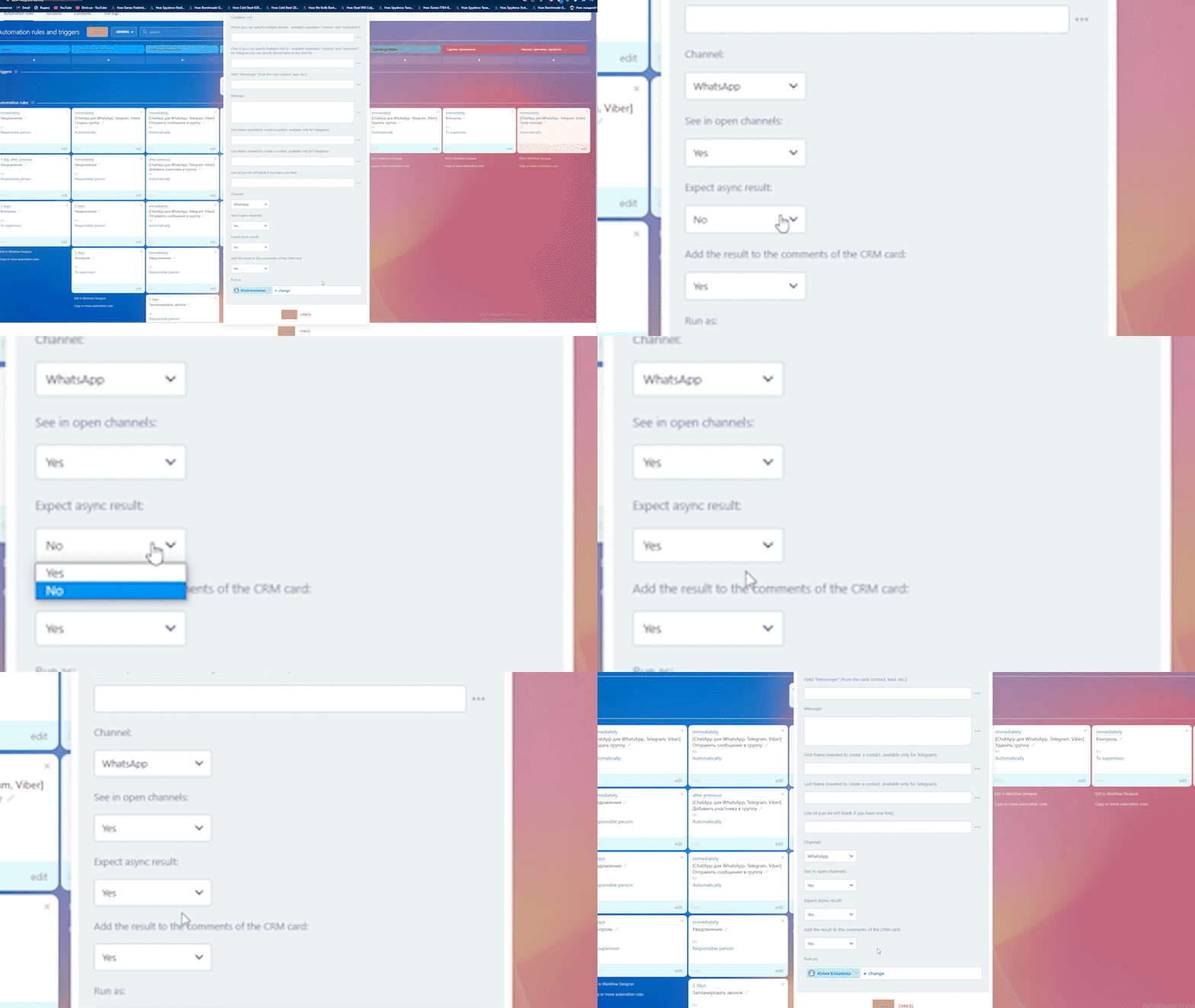
This feature is available in the following automation rules:
- Send a message;
- Send a file;
- Send a document to CRM;
- Send a message to a group;
- Send a file to a group;
- Send a WABA template message;
- Send a WACA template message.
The results are called asynchronous because the automation rules sends the message to the WhatsApp queue instead of directly to the client. WhatsApp may later send an error message, but you may not be aware of it because Bitrix24 has already notified you of the successful delivery.
You can obtain the exact error message and handle it in the iterator or set up a search for specific text in the error to customize your business process based on the result. More details can be found in this article.
Example. Sending a WABA template message
By utilizing the “Expect Async Result” feature, you can be confident that the message will be delivered to the client.
To begin, ensure that the ChatApp integration is connected in Bitrix24 and communication channels are linked in ChatApp, with connectors set up in Bitrix24.
Follow these steps:
1. Go to the “Automation rules” tab in Bitrix24 (refer to the “Automation rules” article for more information).
2. Click on “Add” in the relevant column.
3. Under the “Other” section, select ChatApp’s “Send a WABA template message”.
4. Fill in the required data:
- Phone number: Enter {{Contact: Phone (text)}} to dynamically insert the phone number from the contact card.
- Set “Yes” for “Expect Async Result”.
- Set “Yes” for “Add result to CRM card comments” if you want the result code to be saved in CRM card comments.
- Choose the WABA template.

5. Click “Save”.
6. Create the next robot, ChatApp’s “Message sending”.
7. Check the “after previous automation rule” option.
8. In the “Condition” field, click on the “+” sign.
9. In the first field, select “Automation rules” -> “Send a WABA template message” -> “Result”.
10. In the second field, select “Equal to”.
11. Enter “N” in the next field.
12. Select “Telegram” for the “Channel”.
13. Fill in the remaining fields.
14. Click “Save”.
Now, when you move a card to this column, the automation rule will attempt to send the message via the WABA channel. If unsuccessful, the message will be sent through Telegram. This way, you can add all available communication channels.
