




AI in Dialogs
The AI assistant in Dialogs helps you respond to customers faster and more accurately. It reads your conversation history, understands the context, and offers a meaningful response in a single click. There’s no need to waste time on wording—the assistant will automatically select the right tone, style, and content.
It knows your company, products, and customers because it’s trained on your data: websites, files, and quick responses. Read the article “How to train your assistant” to learn how.AI Knowledge Base“.
How to generate a response
- Go to the Dialogs single window.
- Select the chat where you need a response from the AI assistant.

- At the bottom of the dialog area, under the message input field, click on the “ChatCoin” icon
 .
.
The assistant will create a response based on recent messages and data from the knowledge base – files, websites, and quick replies.
Limitation: The Project offers 100 message generations per month using the AI assistant.
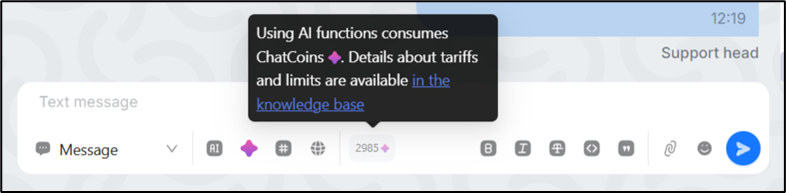
The number of remaining generations in the form of “ChatCoins” is displayed at the bottom of the dialog area under the message input field and is updated dynamically.
Bug fixes
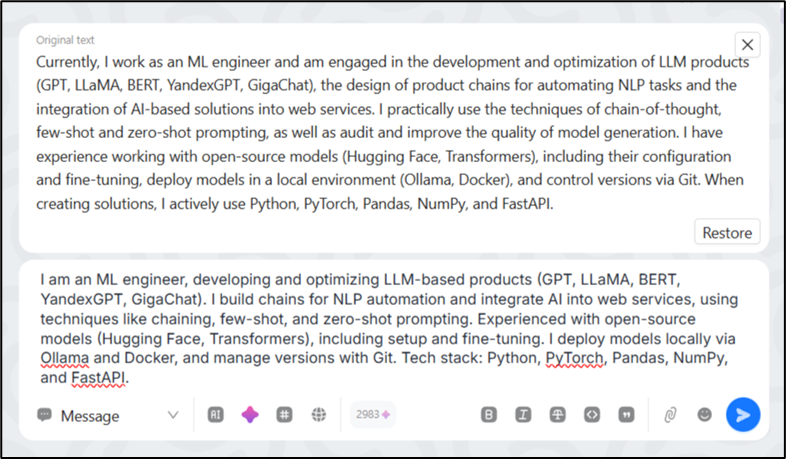
The assistant can correct errors made in the entered message.
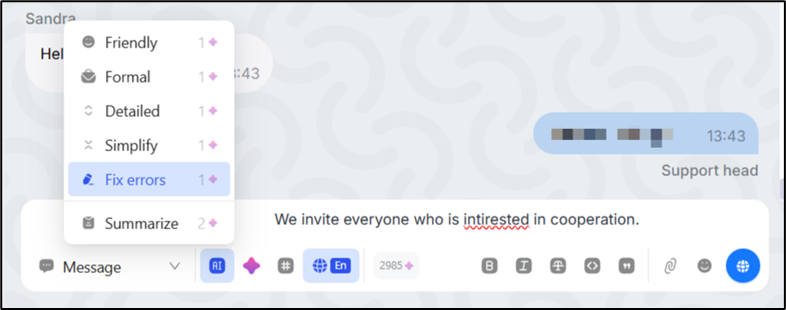
To do this, click on the icon  under the field with the entered message and in the menu that opens, select “Correct errors”.
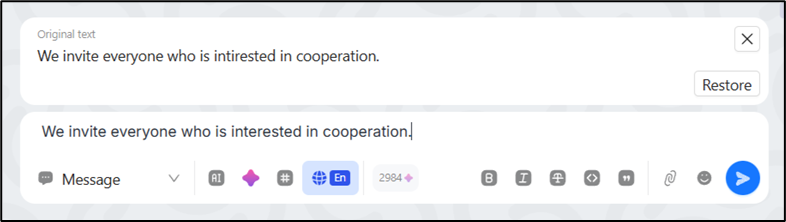
The assistant will correct the text in the message and display a window above the message with the original text and the option to restore it.
Changing the style and tone of your message
When communicating with a client, it may be necessary to change the text of a message in order to give it a certain tone of communication, simplify it, or make it more detailed.
To do this, click on the icon  under the field with the entered message and in the menu that opens, select how you want to transform the text.
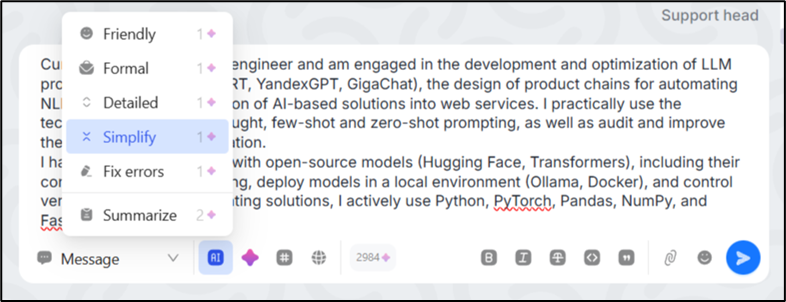
The Assistant will change the text of your message according to the action you select.
Summary of agreements
The assistant will help you summarize the agreements you reached with the client based on conversation analysis. This is especially important when the chat is active and multiple agreements have been reached.
To do this, click on the icon  under the field with the entered message and select “Summarize” in the menu that opens.
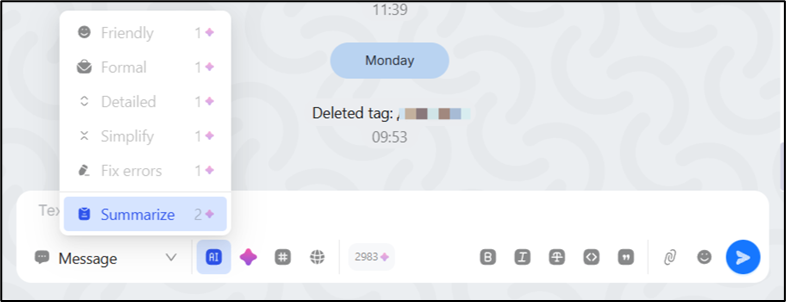
If agreements are reached, the assistant will summarize them and display them in the message line. If no agreements are reached, the assistant will inform you that none have been reached.

Each generation deducts from your available ChatCoins the amount specified in the menu next to the assistant action you’re performing. Once the generation limit is reached, use of the AI assistant on the Project is suspended until the first of the following calendar month.
Translation of messages
You can get a translation of your message into another language using the assistant. Message translation does not consume the Project’s ChatCoins.
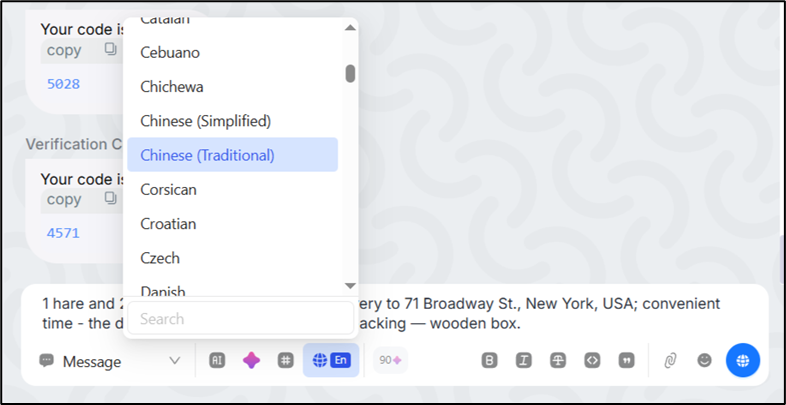
To do this, click on the icon  under the field with the entered message and select the language for translation from the menu. Then click the icon
  on the right below the line with the message.
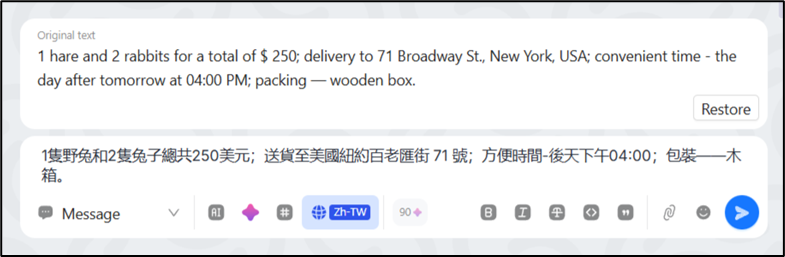
The message has been translated.
100 free AI calls. We offer companies a basic package of 100 Scenario AI requests. The limit is automatically renewed after one month, even if you’ve used all the requests.
AI-request counter right in the message sending window. Now you can always see how many AI requests a company has remaining. The counter automatically decrements when you use any AI function.
All users work with a common balance. Requests are spent on a common account—each employee contributes to the use of AI.
Translation of outgoing messages is always free. Even with a zero balance, AI transfer remains available without restrictions.
