




Knowledge base AI
To improve your responses, upload your company’s assets—websites, files, or pages. This way, the assistant will understand the context and write relevant responses.
How to open the knowledge base
- Log in to your Personal Account. Select the Project where you’ll be working with AI.
.
- In the left sidebar of the page, go to the “Chatbots” module.
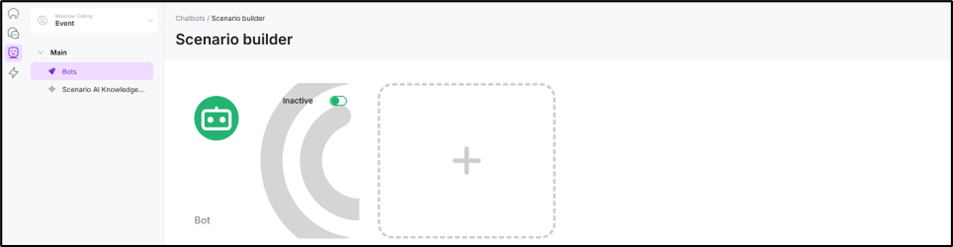
- In the left menu of the page, select the section “Scenario AI Knowledge Base“.
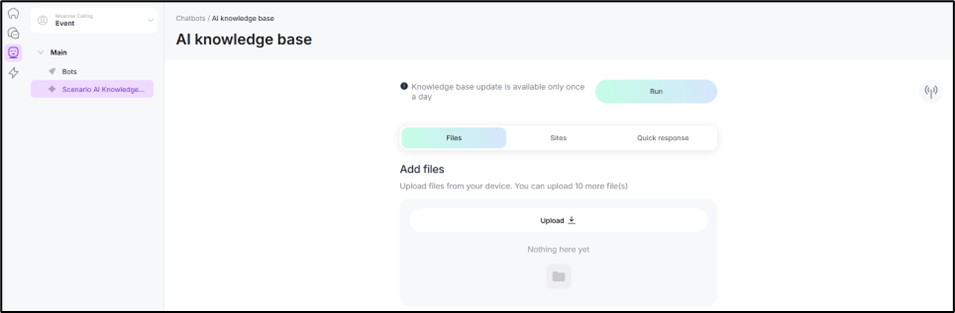
Adding files
- Open the Files tab.
- Click the “Download” button.
- Select the required file in .txt, .doc, .docx, .pdf format.
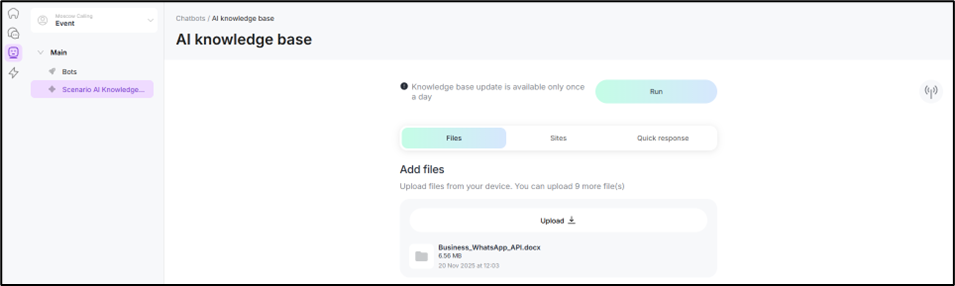
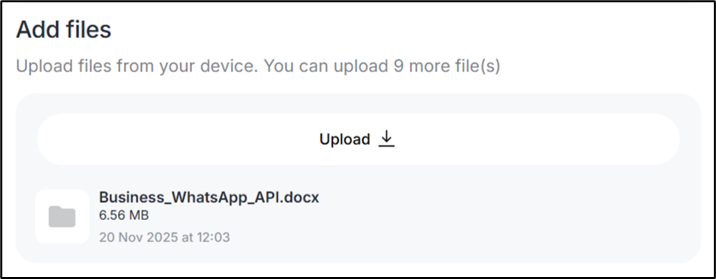
The file will be added to the uploaded files area.
You can delete any downloaded file if necessary by hovering over it and clicking on the icon  .
.
Adding sites
- Open the “Sites” tab.
- Enter the URL of the website or a specific page. Website scraping only works for the first 500 pages.
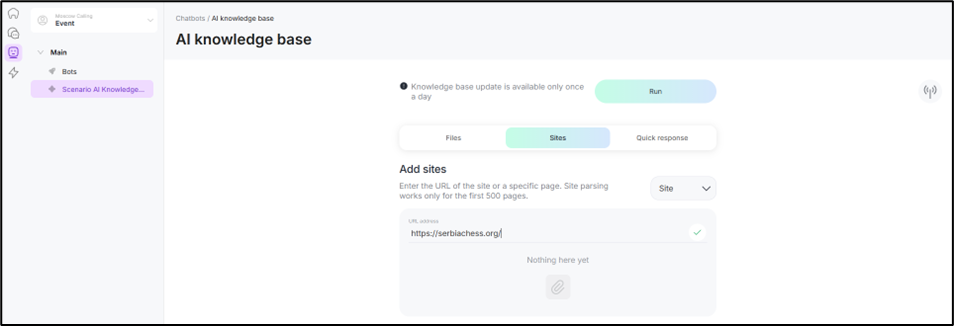
To add a page, change the “Site” field to “Page” and enter the page URL.
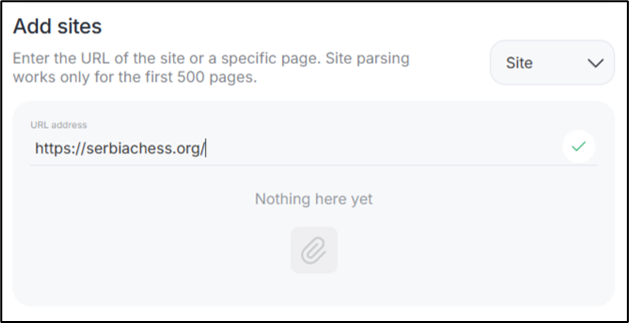
- Click on the icon
 .
.
The service will collect all pages starting with your domain.
Example: If you added https://example.ru/help/23, then all links starting with will be processed https://example.ru/.
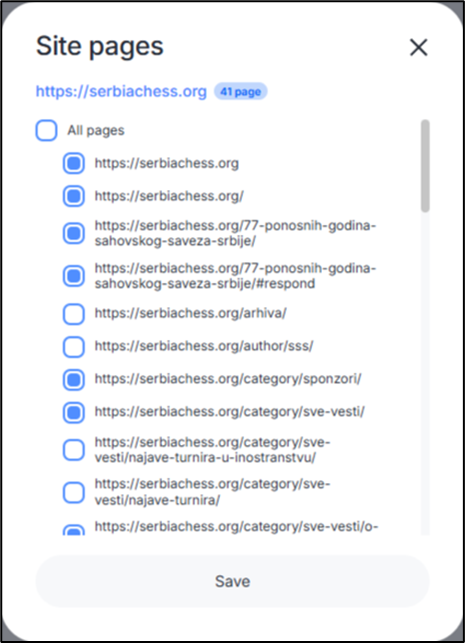
- In the window that appears, uncheck the unnecessary pages.
- Click the “Save” button.
Limitation: You can add up to 10 sites and up to 500 pages.
Knowledge base update
After adding the sources, run the update:
- Click the “Start” button.

- Confirm the operation and wait for the process to complete.
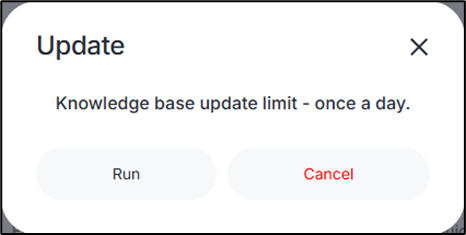
Important: Scenario AI knowledge base update costs 5 ChatCoins.
Now you can use all the assistant’s features in Dialogs. Learn how to work with it in a single Dialogs window in the article “AI in Dialogs“.
Errors during update
Sometimes errors occur, for example:
- “Unable to retrieve data from the page”
- “The file or site contains inappropriate content.”
If you see the message “<number> errors”, try downloading again:
1). Hover your cursor over the three dots next to the site.
2). Select “Errors”.
3). Mark the required pages and click “Update”.
Some errors can be resolved by updating the page again. If the problem is content-related, delete the page or leave it as is.
To remove error pages:
1). Uncheck the boxes next to unnecessary pages.
2). Click “Save”.
