




Getting the full version
You can purchase a line and receive a fully functional version of the software at any time.
1. At the top of the left sidebar of the Personal Account page, select the Project for which you are purchasing on line from the drop-down list.
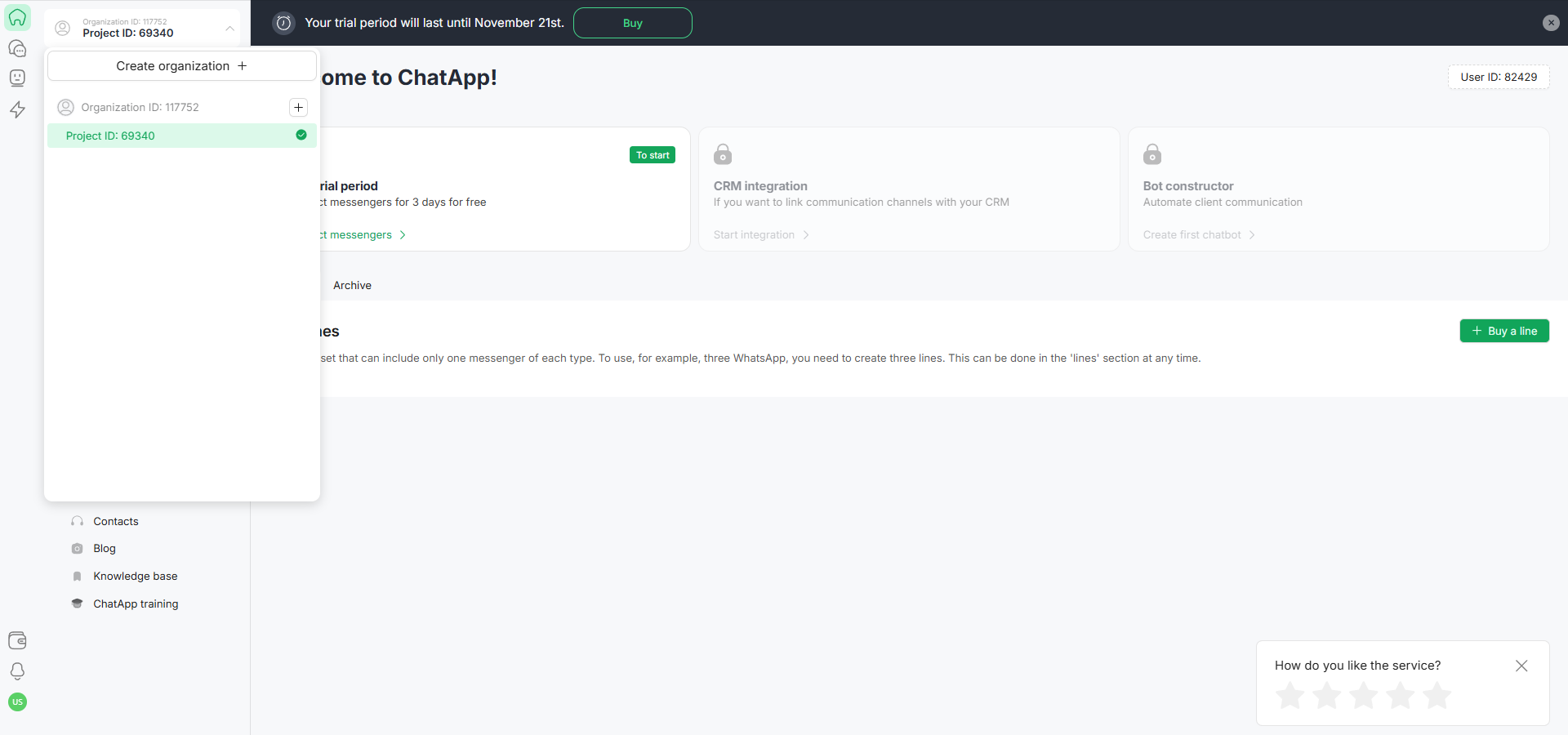
2. Click the “Buy” button in the page header or “+ Buy line” in the “Lines” section.
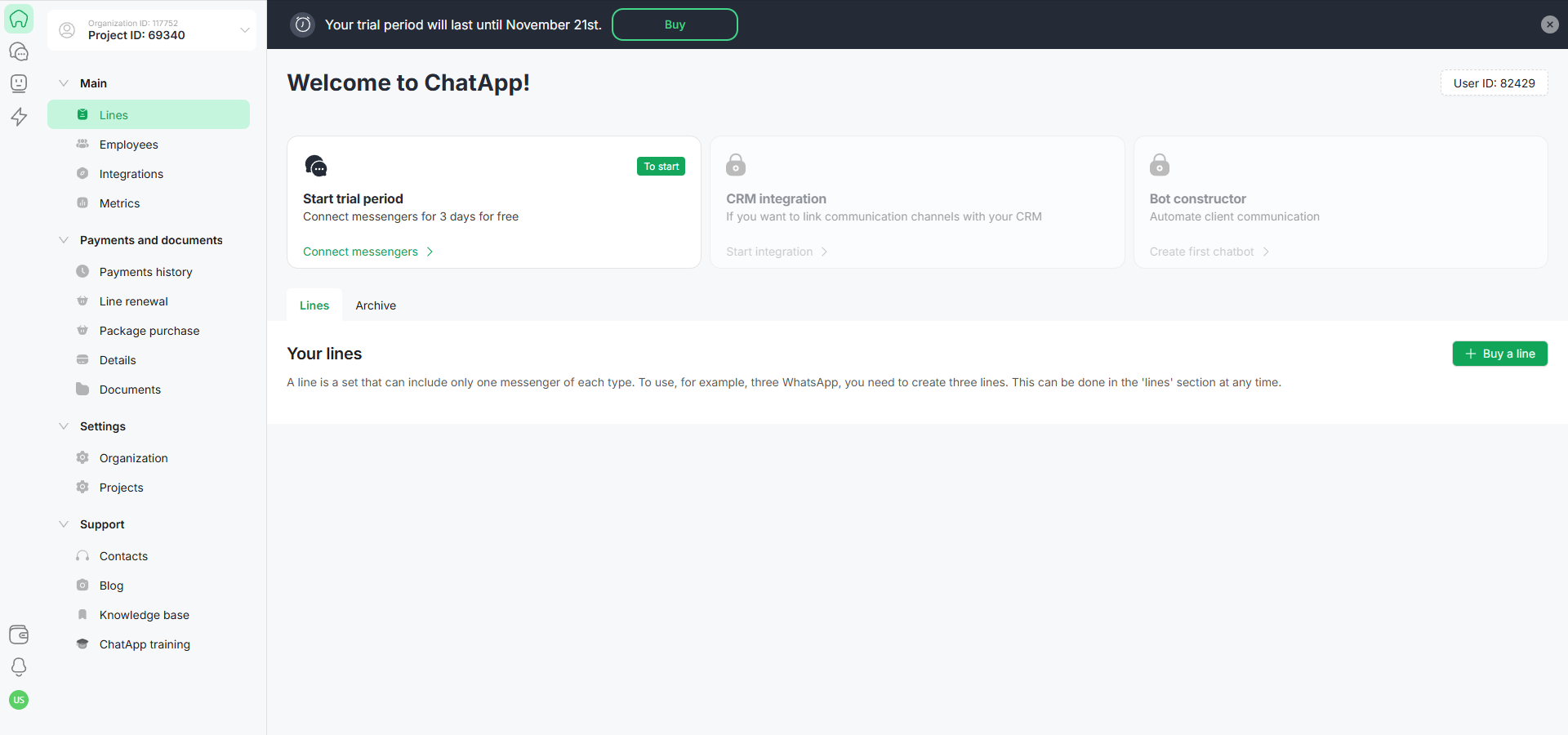
3. In the form that opens, select your country to set prices in dollars USA and available payment methods, and click the “Next” button.
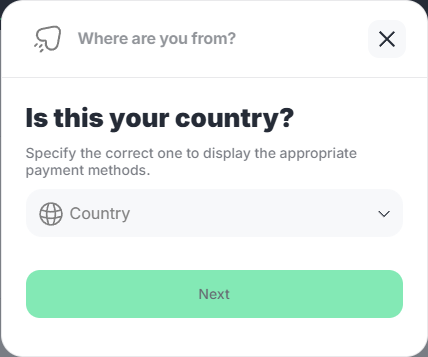
The system will open the Line Builder, where you can select channels to work with in the new line.
4. Select the term for which you want to purchase the line and channels by selecting “Month” or “Year.” A 20% discount applies when purchasing a 12-month license. The channel price is determined according to the selected term.
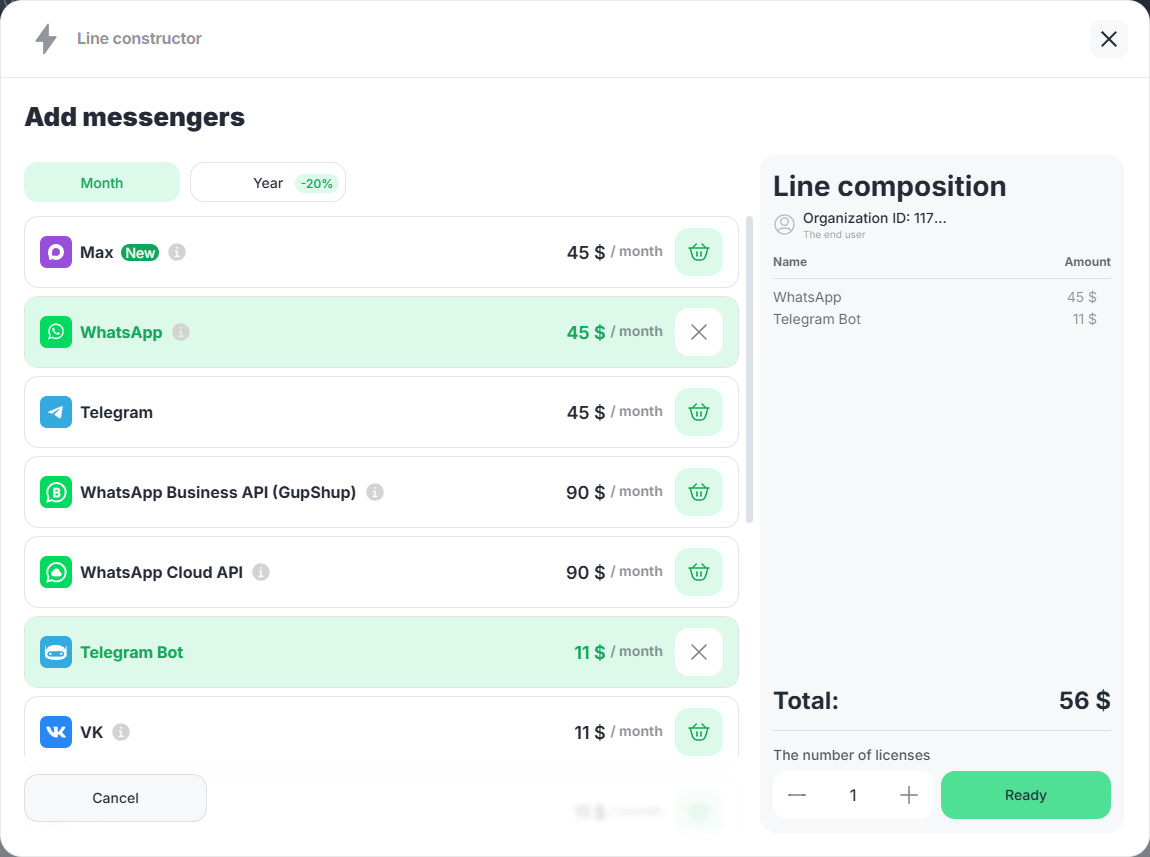
5. To add to the line, click on the icon  in the channel line, it will appear in the “Line composition” area on the right.
6. Specify the number of lines to be purchased in the quantity field at the bottom of the area.
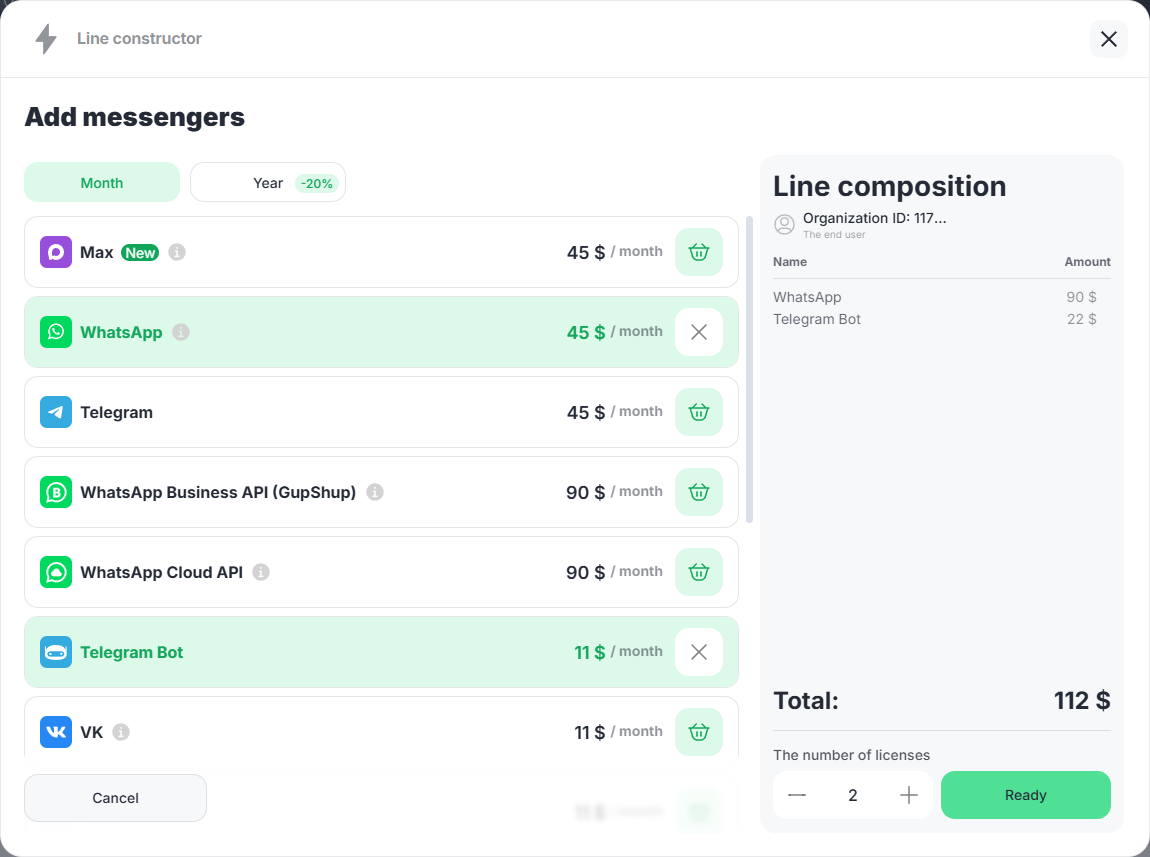
The discount when purchasing a line and the final amount are calculated and displayed immediately.
7. Click the “Ready” button after forming the line composition and quantity.
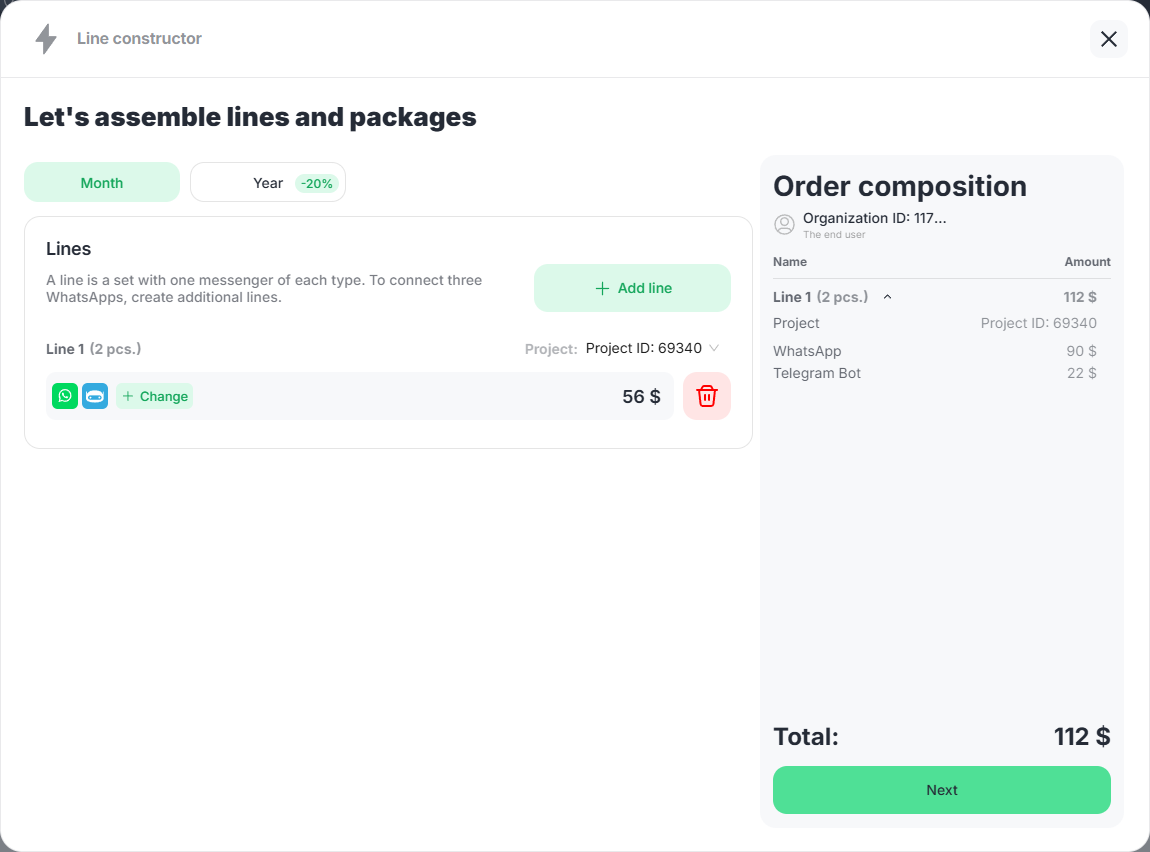
The system generates an order in which you can:
1) Change the period for which the line is purchased, use the “Change” button to change the composition of the line, and use the “Delete” button  to delete the line.
2) Create and add a new line to the order by clicking the “+ Add line” button.
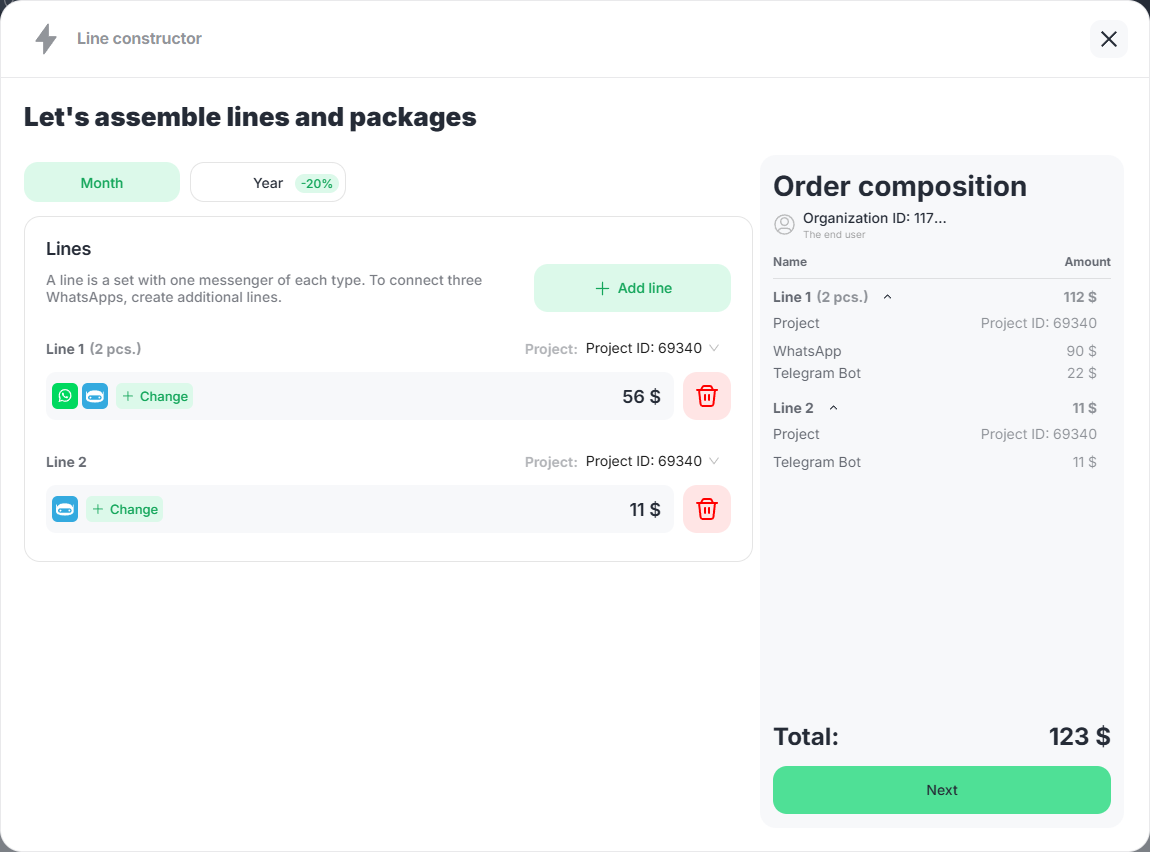
3) View the order composition, which shows:
– the lines included in it and their number;
– list of channels in each line;
– the cost of each channel;
– the total order amount and the discount amount.
8. Click the “Next” button to proceed to payment for your order.
To pay for your order, the system will prompt you to select a payment method and enter the payer’s details.
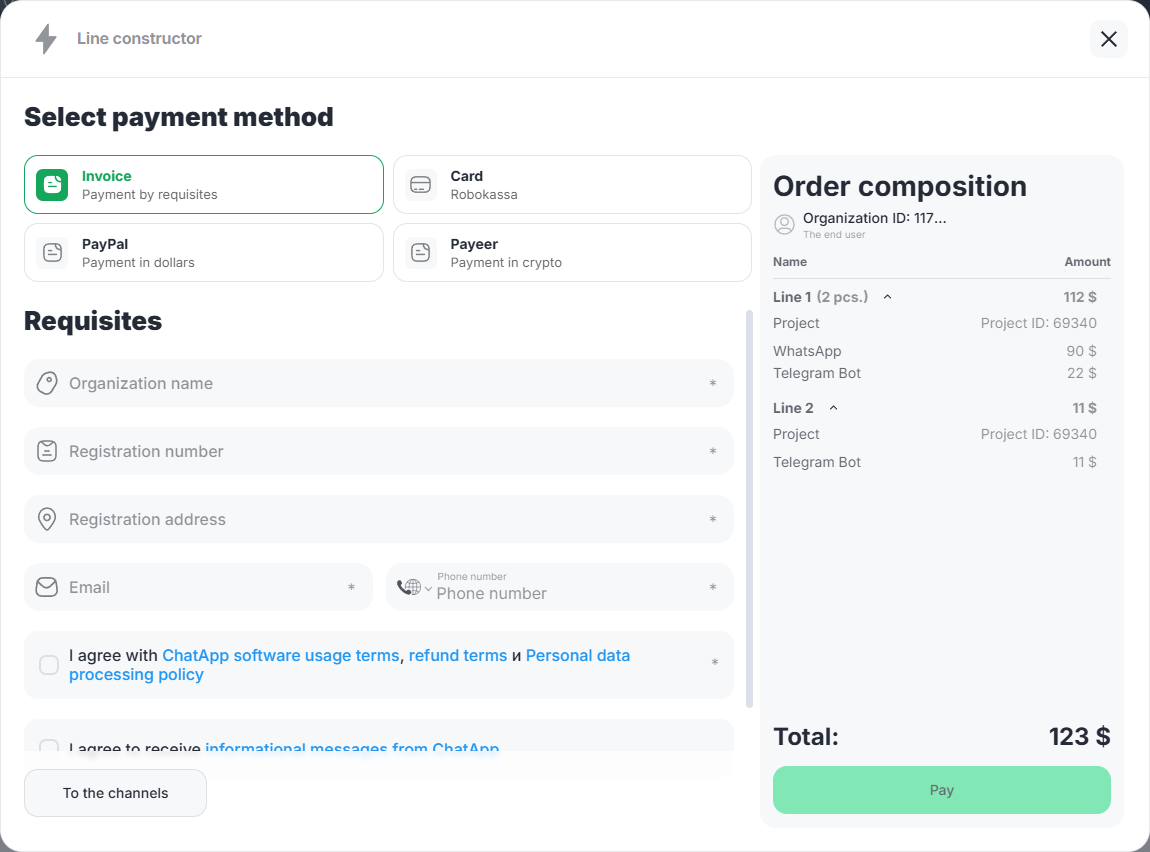
Possible payment options:
• Invoice – payment according to details
• Card – by card from a legal entity’s account
• Card- by card from an individual’s account
• PayPal- through an online payment system from a legal entity’s account
• PayPal- through an online payment system from an individual’s account
• Payeer- through an electronic payment system in cryptocurrency from an individual’s account
Payment by invoice
1. Fill in all required fields of the on-screen form with the payer’s current data.
Enter the name of your organization, its registration number and address manually. After payment for the order, the system will populate the organization’s details based on this information.
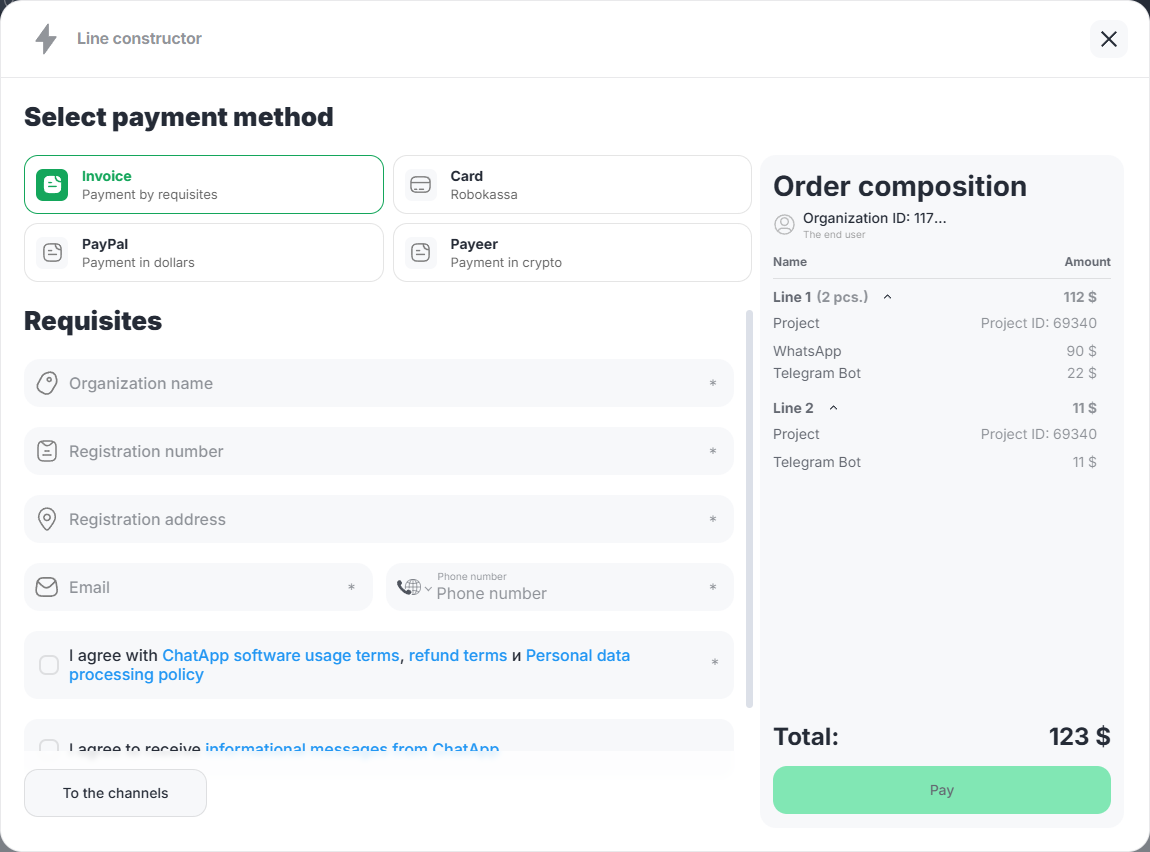
In the Email and Phone Number fields, enter the recipient’s information for messages and closing documents, for example, an accountant.
Please confirm your agreement with the terms of use of the software and your consent to receive informational messages from ChatApp by checking the checkboxes.
By clicking the “To the channels” button, you can return to the created order to make adjustments.
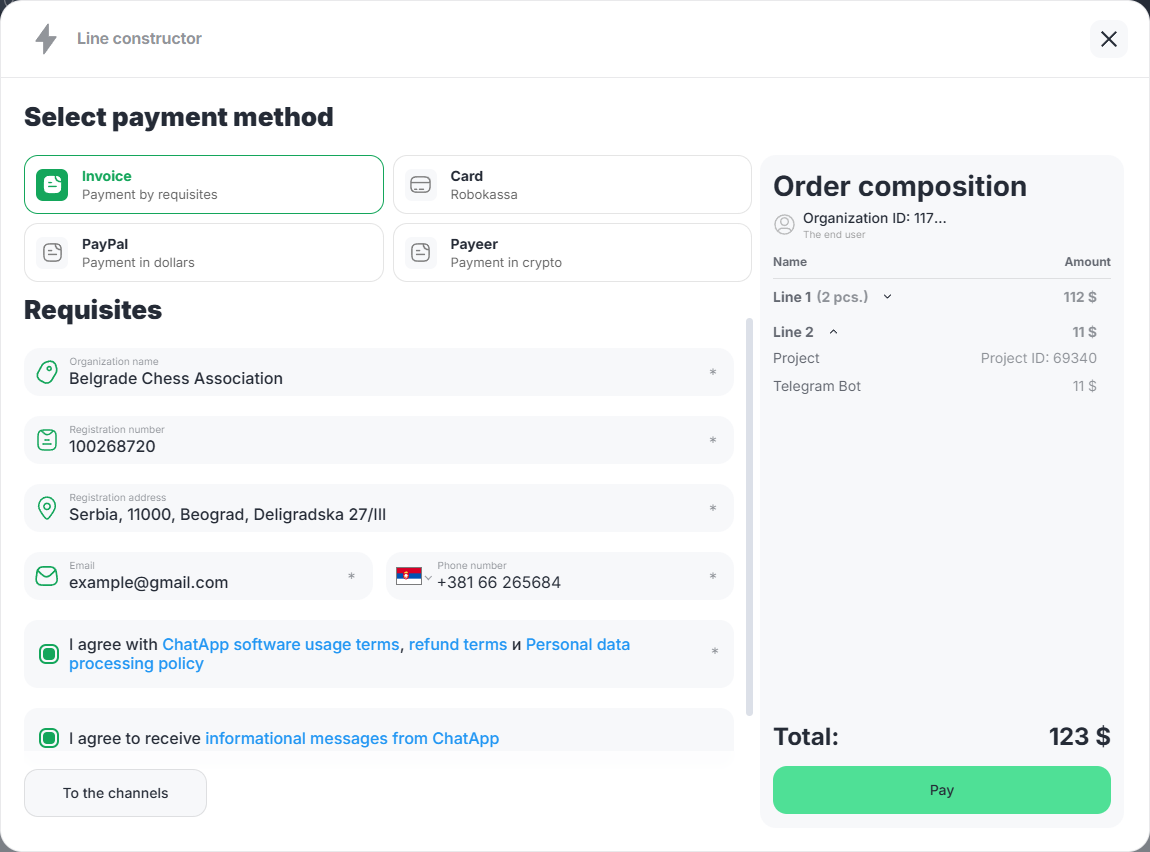
2. Click the “Pay” button. The system will generate a printed invoice for payment.
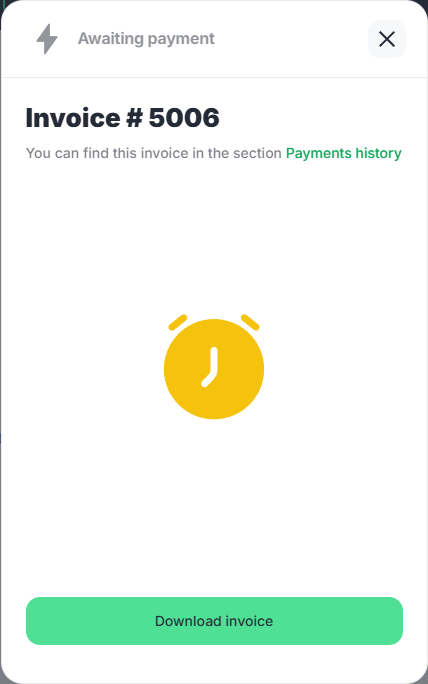
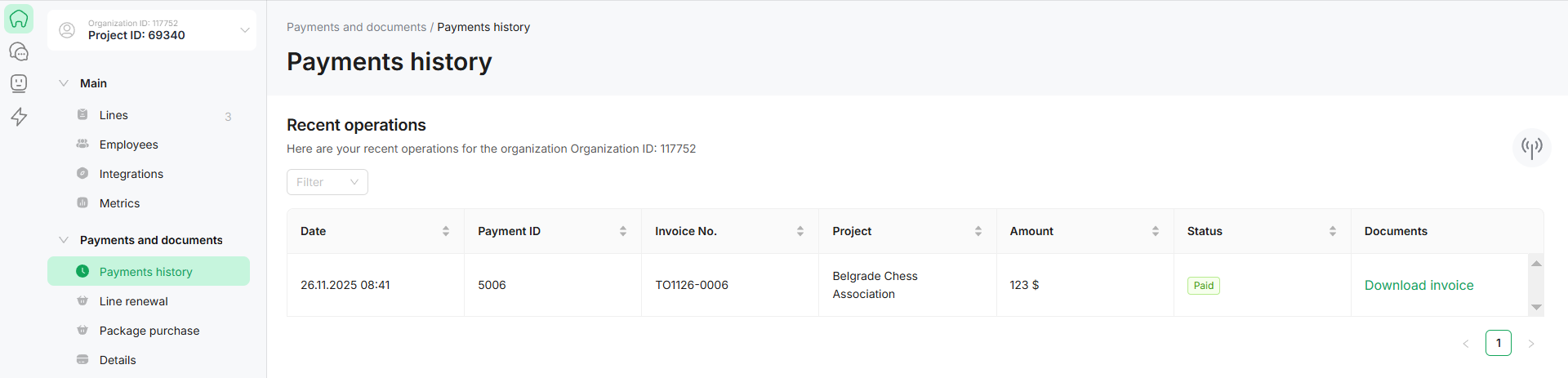
When paying to a bank account, payment is received within 3-7 business days. After successful payment, the account status in your Personal Account under Payments and Documents –> Payments History is set to “Paid” and the line is available for use.
Payment by card from the account of a legal entity or individual entrepreneur
1. Fill in the fields of the on-screen form with the payer’s current data.
Enter the payer’s information in the Full Name, Email, and Phone Number fields to complete the personal data for the Organization. Turn on the “I want to receive closing documents” toggle switch.
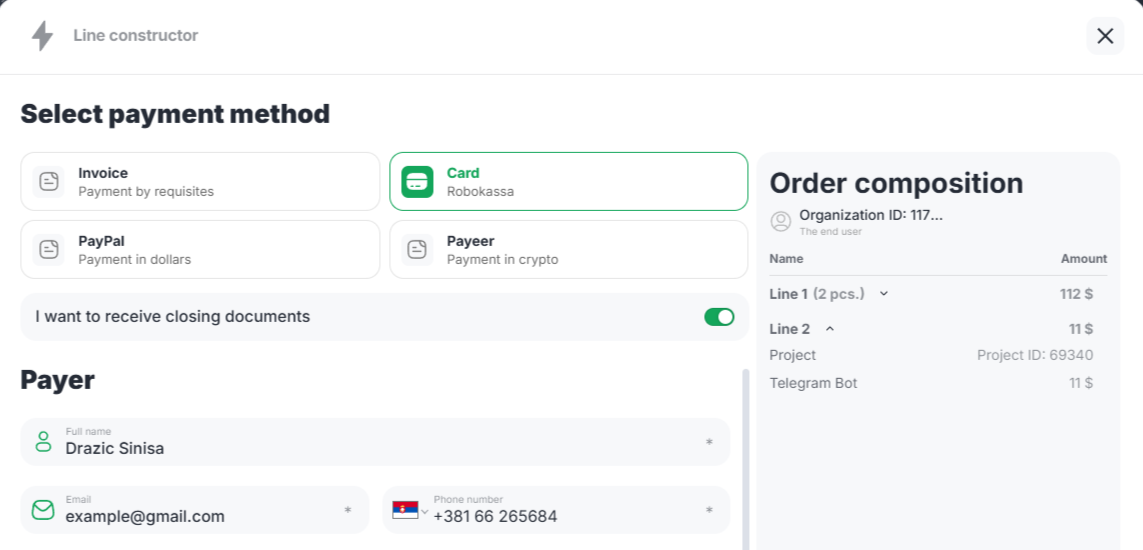
2. Fill in all required fields of the on-screen form with the current details.
Enter the name of your organization, its registration number and address manually. After payment for the order, the system will populate the organization’s details based on this information.
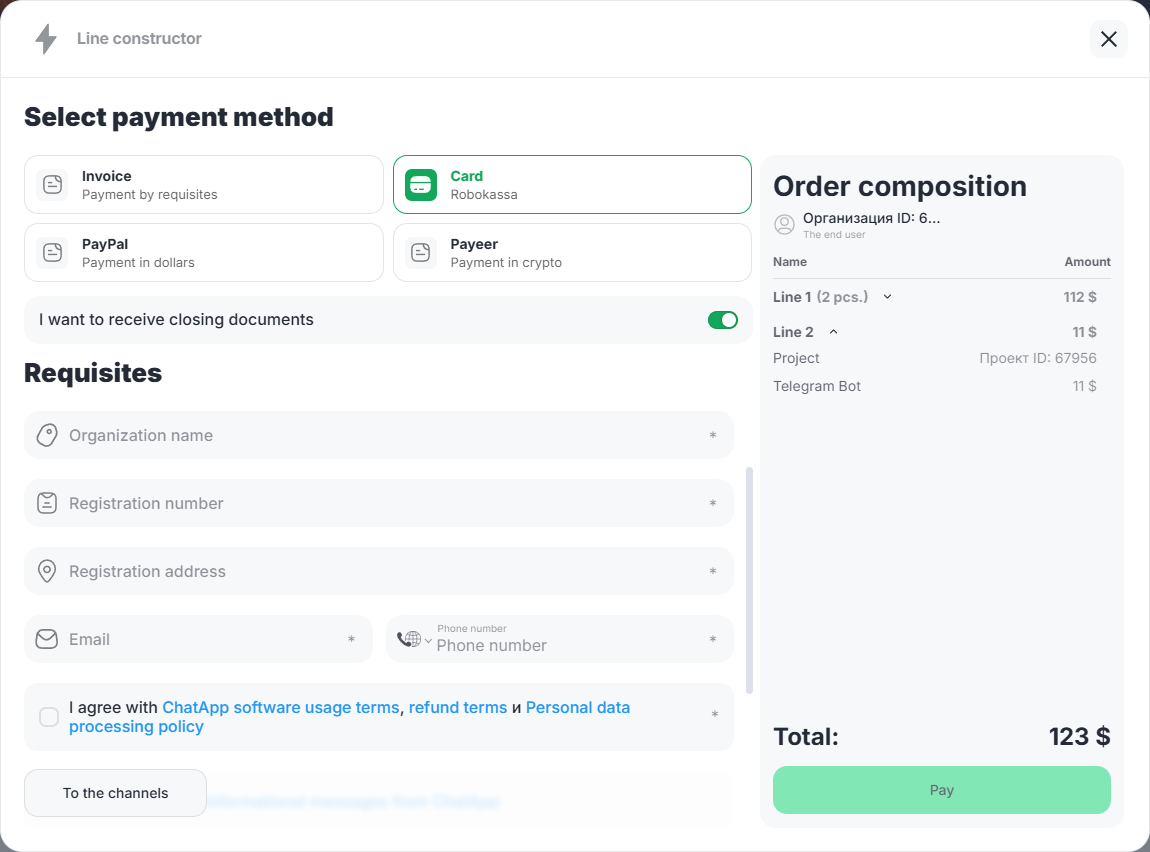
3. By checking the boxes, confirm your agreement with the terms of use of the software and consent to receive informational messages from ChatApp.
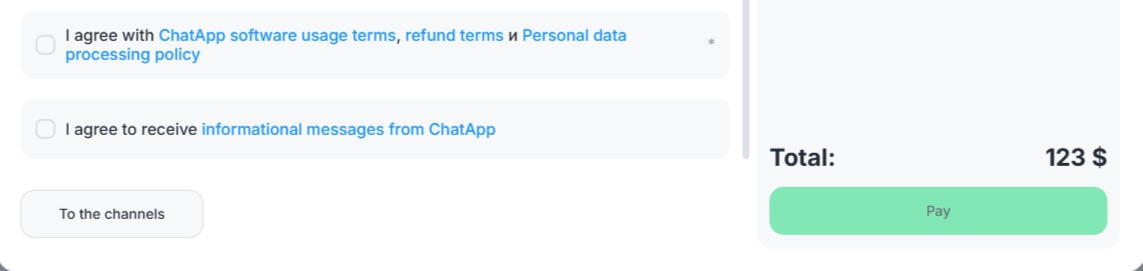
Click the “To the channels” button to return to the generated order for adjustment.
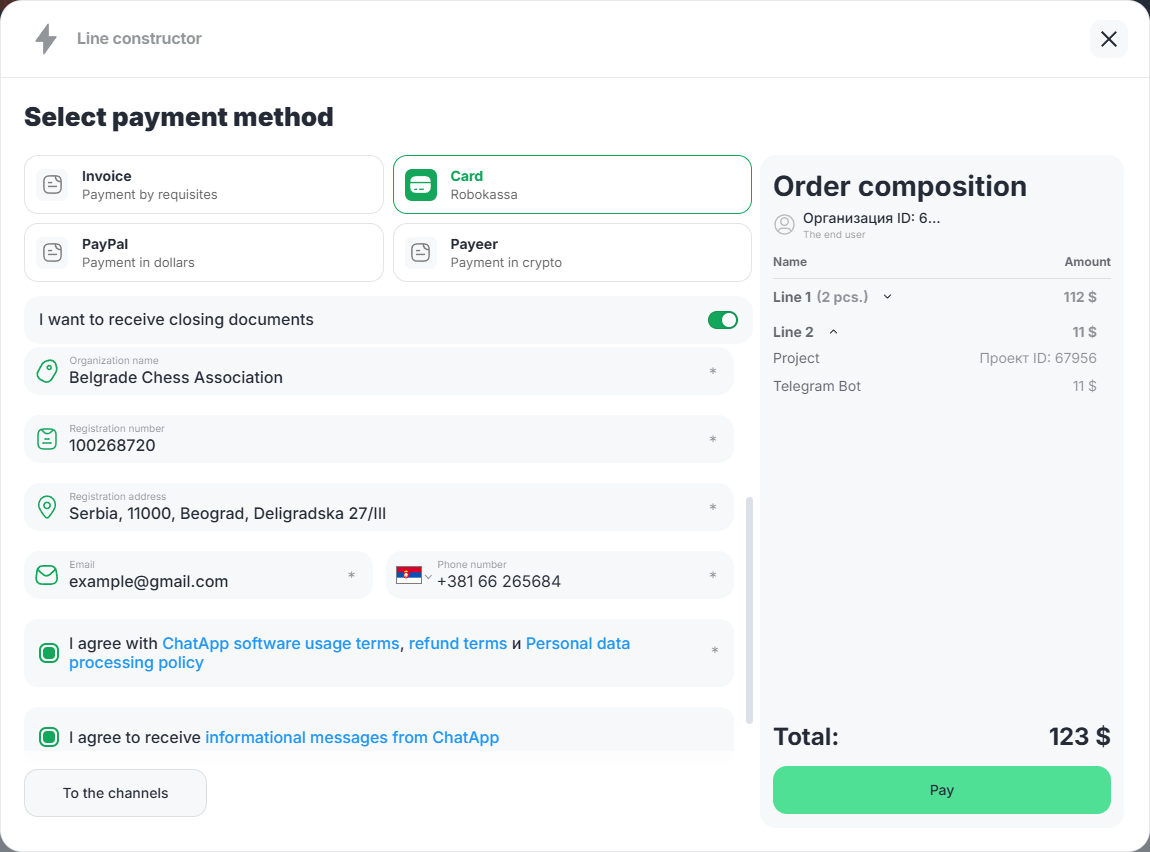
4. Click the “Pay” button. A form for entering data into the bank’s payment system will open.
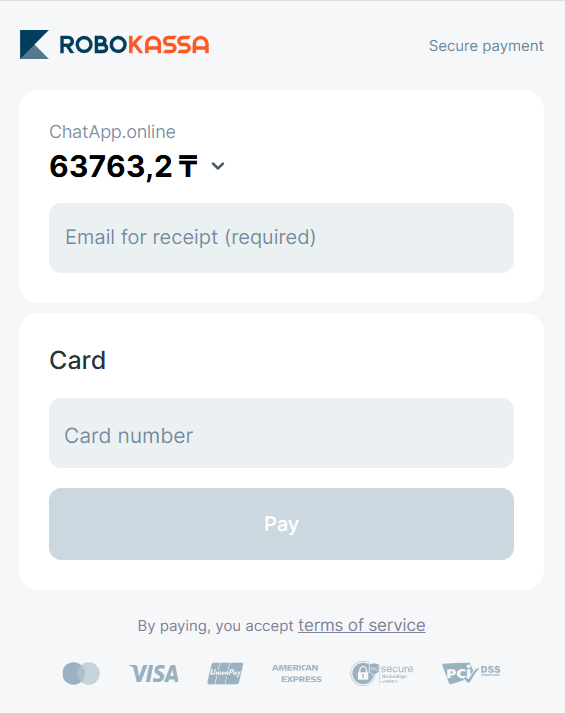
5. A special feature of Robokassa is the display of the payment amount in Kazakh tenge in the payment window. The payment itself is made in US dollars. Enter your payment card details. If you require a payment receipt, check the box and enter the email address to which the receipt will be sent.
6. Click the “Pay” button.
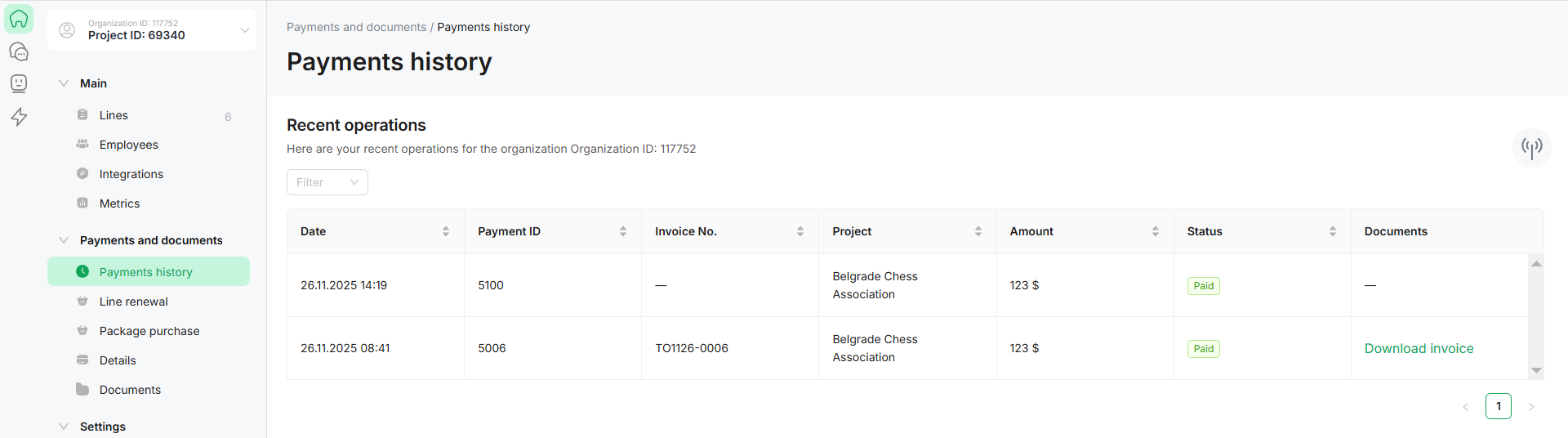
After successful payment, the account status in your Personal Account under Payments and Documents –> Payments History is set to “Paid” and the line is available for use.
Payment by individual card
1. Fill in the on-screen form fields with the payer’s current information. Enter the payer’s details in the Full Name, Email, and Phone Number fields. After the order is paid, the system will populate the payer’s personal information and Organization details with the payer’s details.
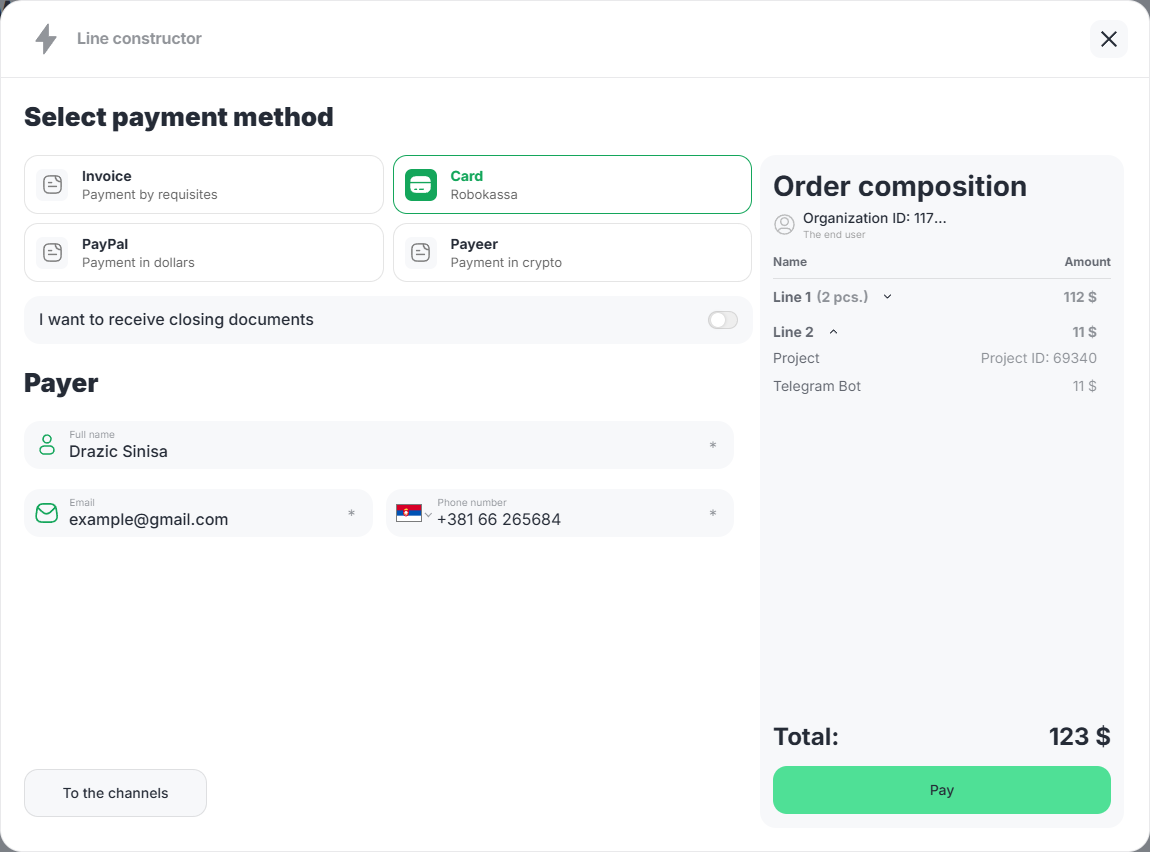
2. Click the “To channel selection” button to return to the created order for adjustment.
3. Click the “Pay” button. A form for entering data into the bank’s payment system will open.
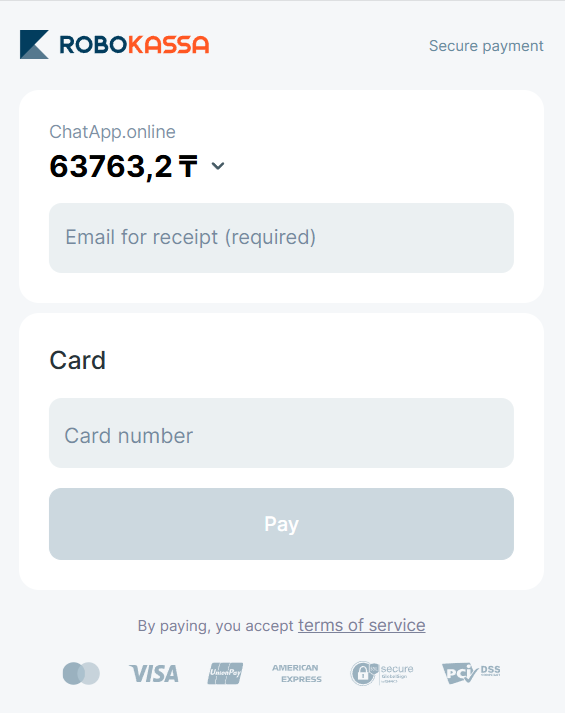
4. A special feature of Robokassa is the display of the payment amount in Kazakh tenge in the payment window. The payment itself is made in US dollars. Enter your payment card details. If you require a payment receipt, check the box and enter the email address to which the receipt will be sent. By default, this field displays the email address you entered during registration.
5. Click the “Pay” button.
After successfully paying for the line, you’ll gain access to the fully functional version of the software. Now you can use all the system’s features.
PayPal payment from the account of a legal entity or individual entrepreneur
1. Fill in the fields of the on-screen form with the payer’s current data.
Enter the payer’s information in the Full Name, Email, and Phone Number fields to complete the personal data for the Organization. Turn on the “I want to receive closing documents” toggle switch.
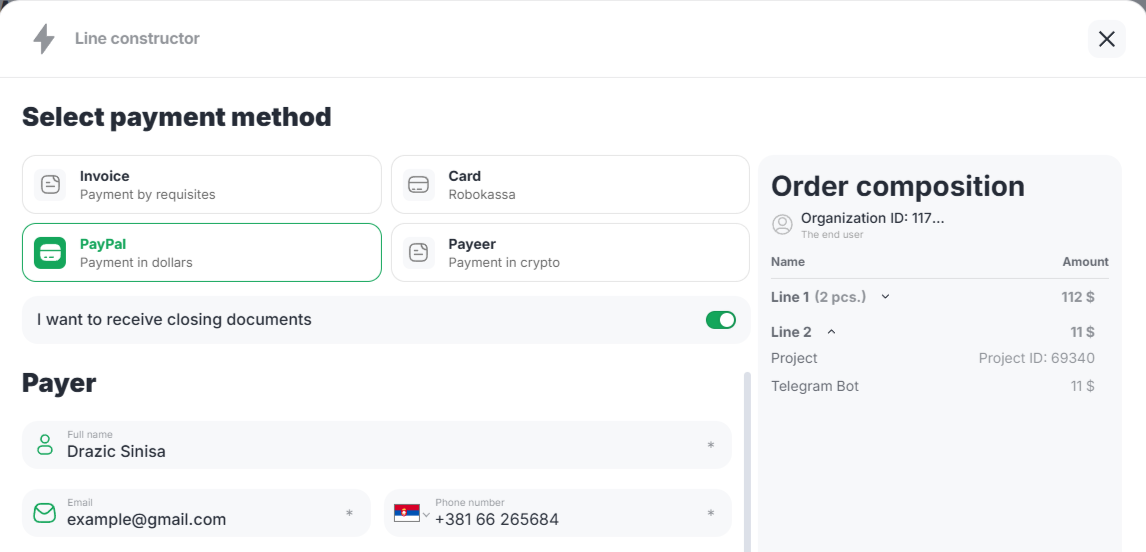
2. Fill in all required fields of the on-screen form with the current details.
Enter the name of your organization, its registration number and address manually. After payment for the order, the system will populate the organization’s details based on this information.
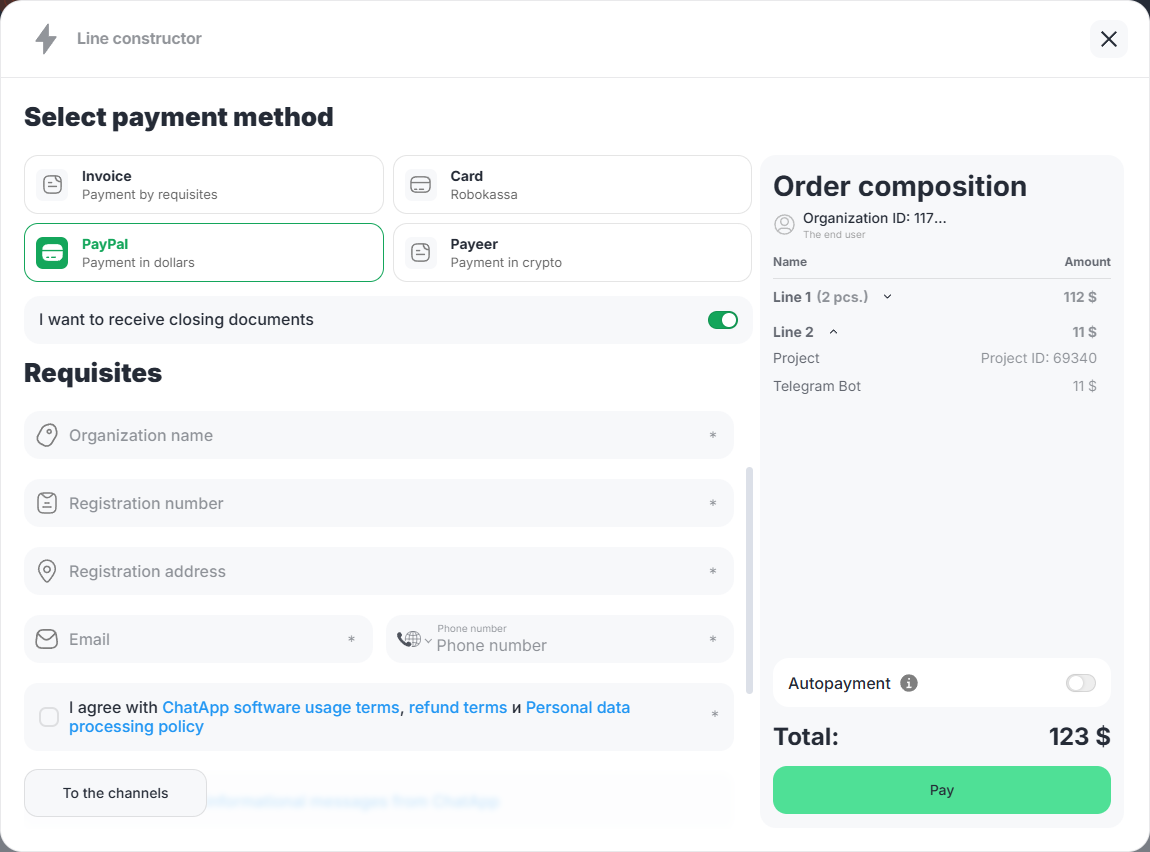
3. By checking the boxes, confirm your agreement with the terms of use of the software and consent to receive informational messages from ChatApp.
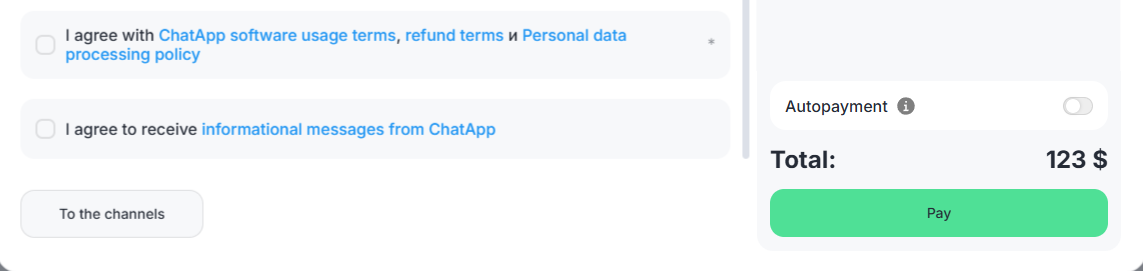
Click the “To the channels” button to return to the generated order for adjustment.
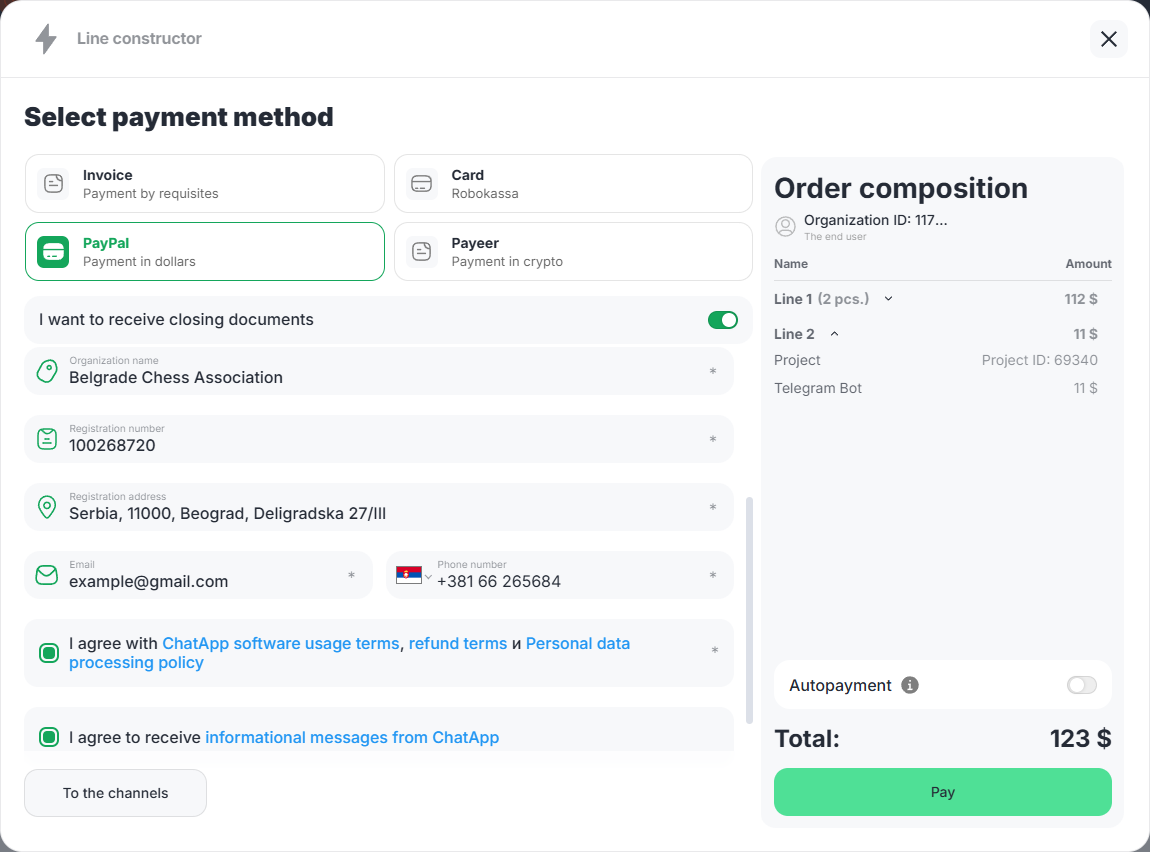
The system allows you to make automatic payments for regular debits without manually confirming each transaction. Turn on the “Autopayment” switch to activate this feature.
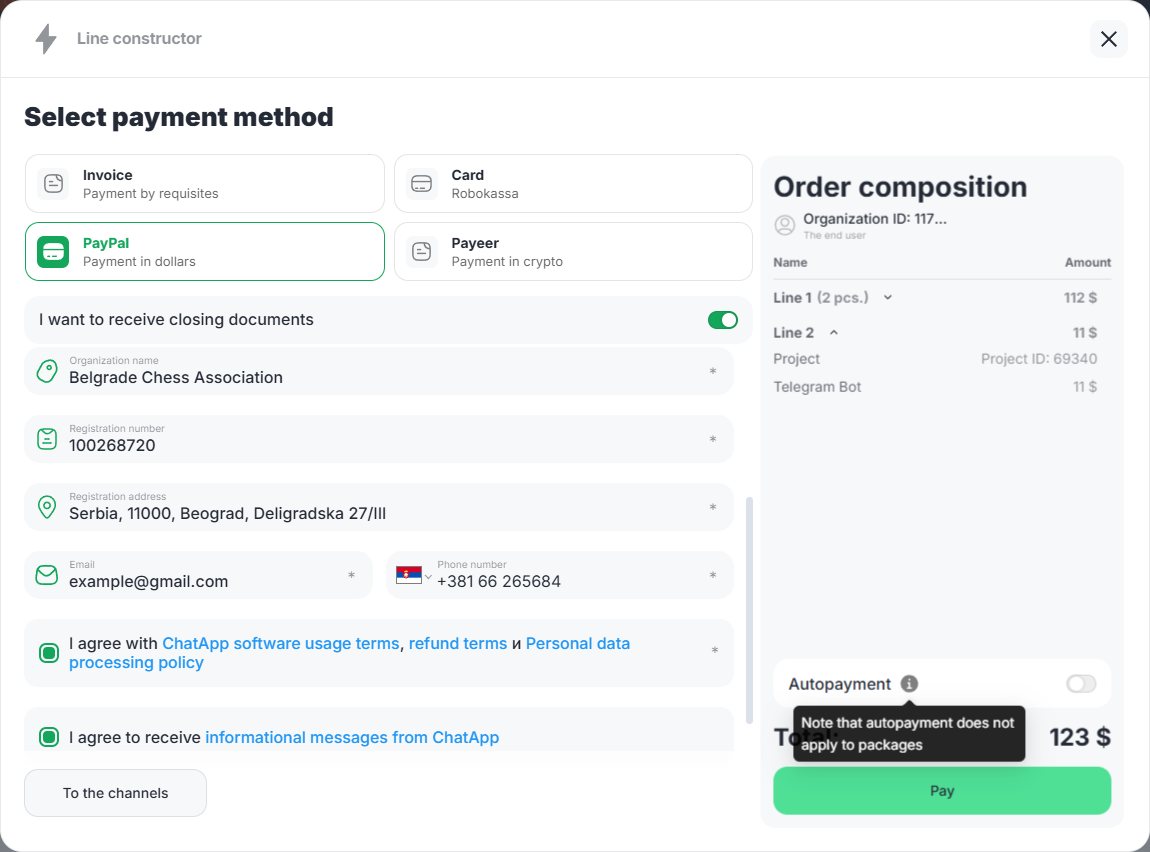
4. Click the “Pay” button. A form for entering data into the payment system will open.
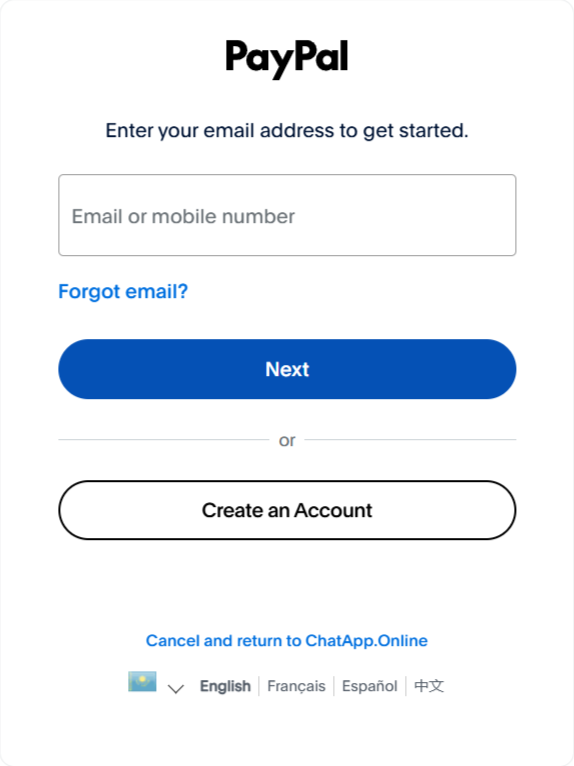
5. Enter your email or mobile number for authorization and make the payment by PayPal.
After successful payment, the account status in your Personal Account under Payments and Documents –> Payments History is set to “Paid” and the line is available for use.
PayPal payment from an individual’s account
1. Fill in the on-screen form fields with the payer’s current information. Enter the payer’s details in the Full Name, Email, and Phone Number fields. After the order is paid, the system will populate the payer’s personal information and Organization details with the payer’s details.
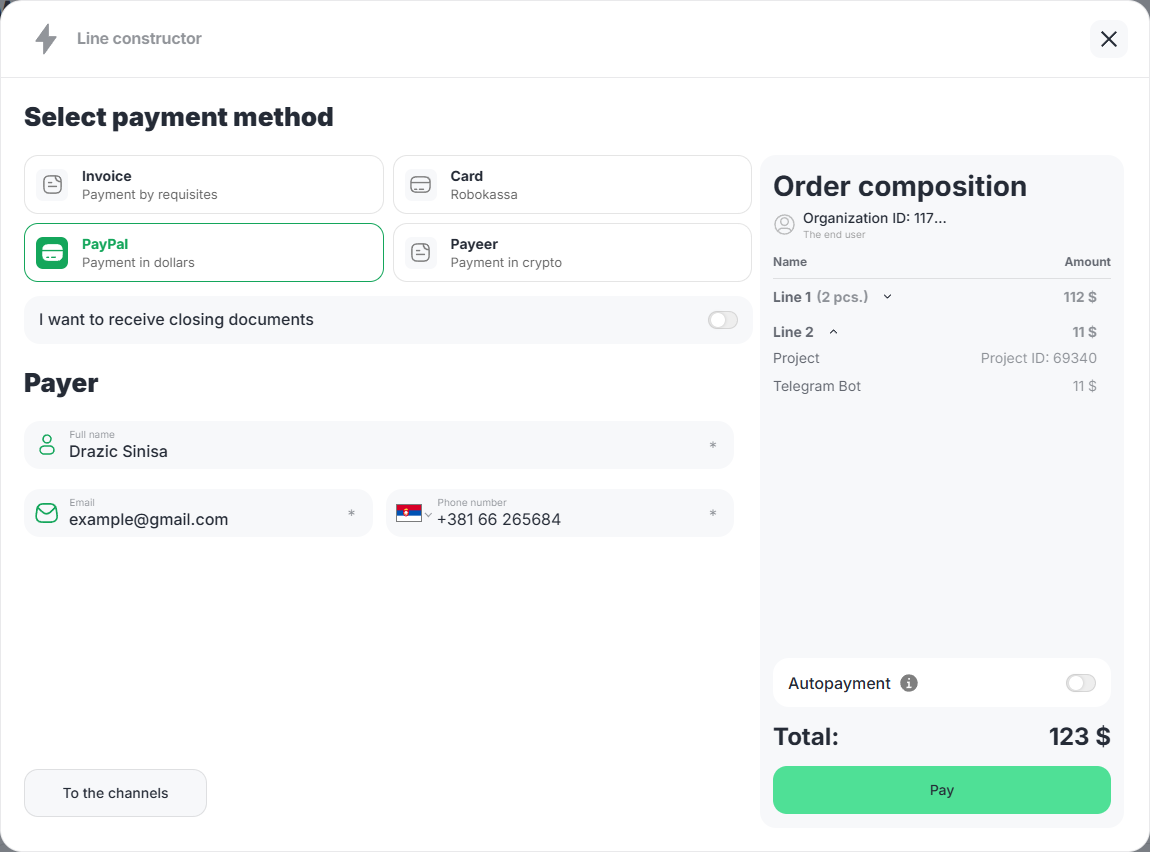
2. Click the “To channel selection” button to return to the created order for adjustment.
The system allows you to make automatic payments for regular debits without manually confirming each transaction. Turn on the “Autopayment” switch to activate this feature.
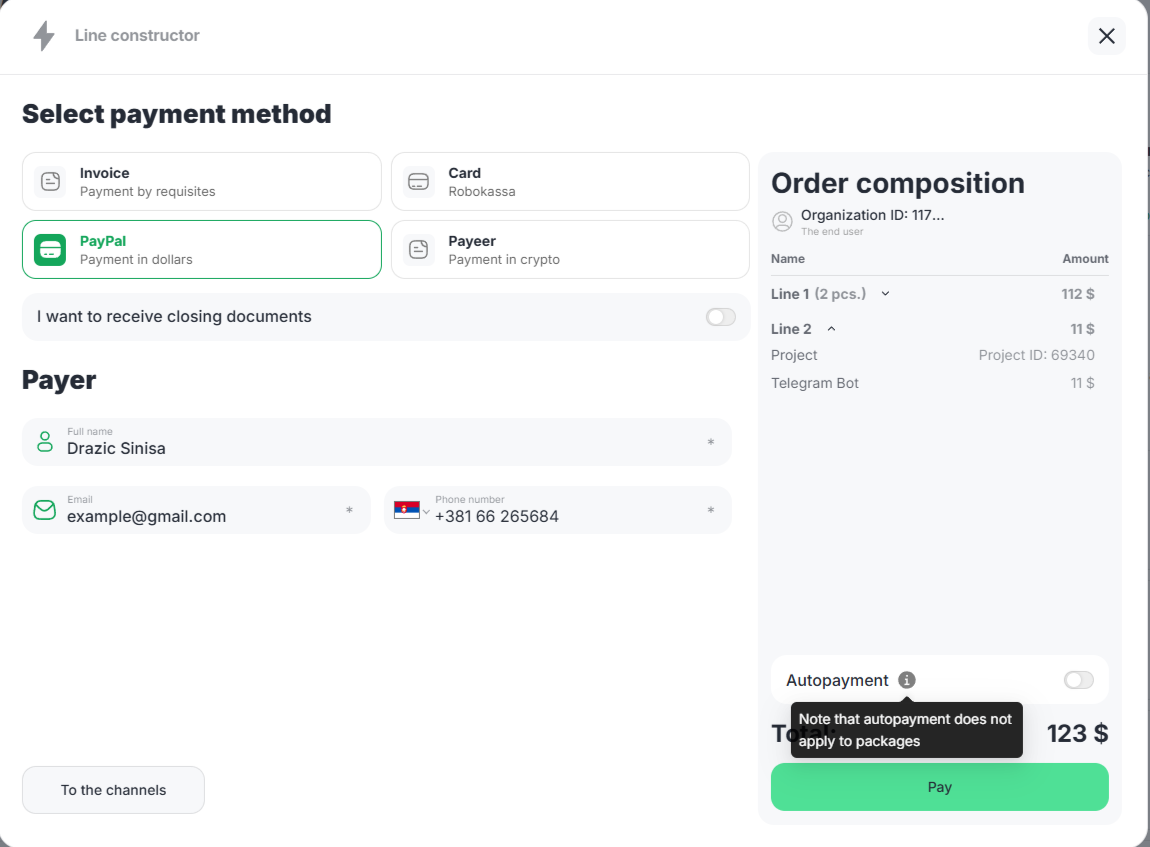
3. Click the “Pay” button. A form for entering data into the payment system will open.
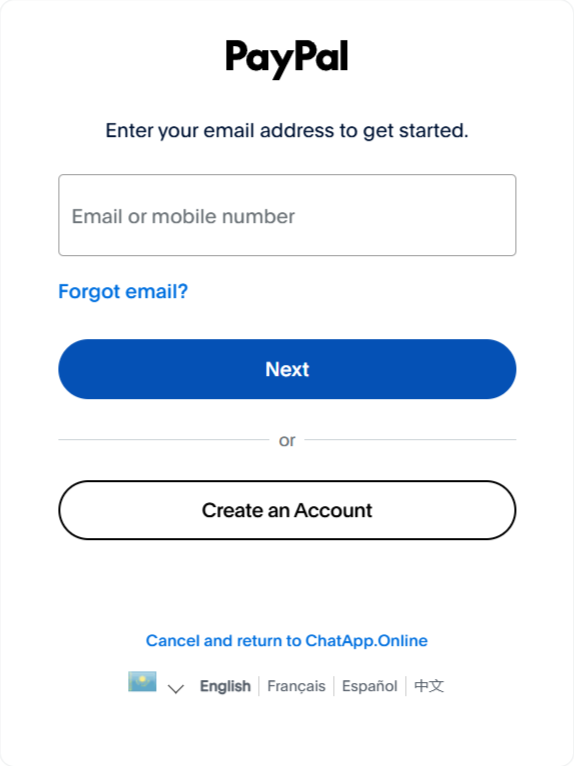
4. Enter your email or mobile number for authorization and make the payment by PayPal.
After successfully paying for the line, you’ll gain access to the fully functional version of the software. Now you can use all the system’s features.
Payeer payment from an individual’s account
1. Fill in the on-screen form fields with the payer’s current information. Enter the payer’s details in the Full Name, Email, and Phone Number fields. After the order is paid, the system will populate the payer’s personal information and Organization details with the payer’s details.
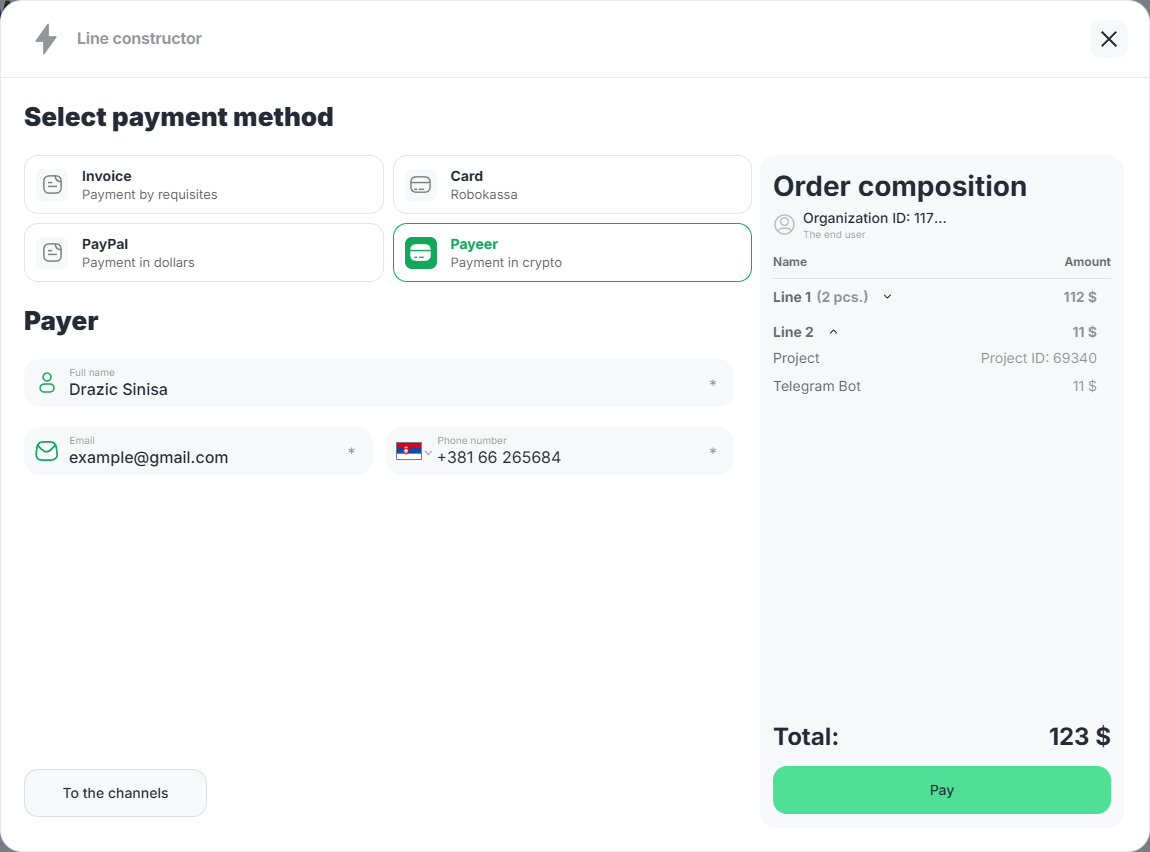
2. Click the “To channel selection” button to return to the created order for adjustment.
3. Click the “Pay” button. A form for entering data into the payment system will open.
4. After logging in to the system, confirm the payment by clicking the “Confirm” button.
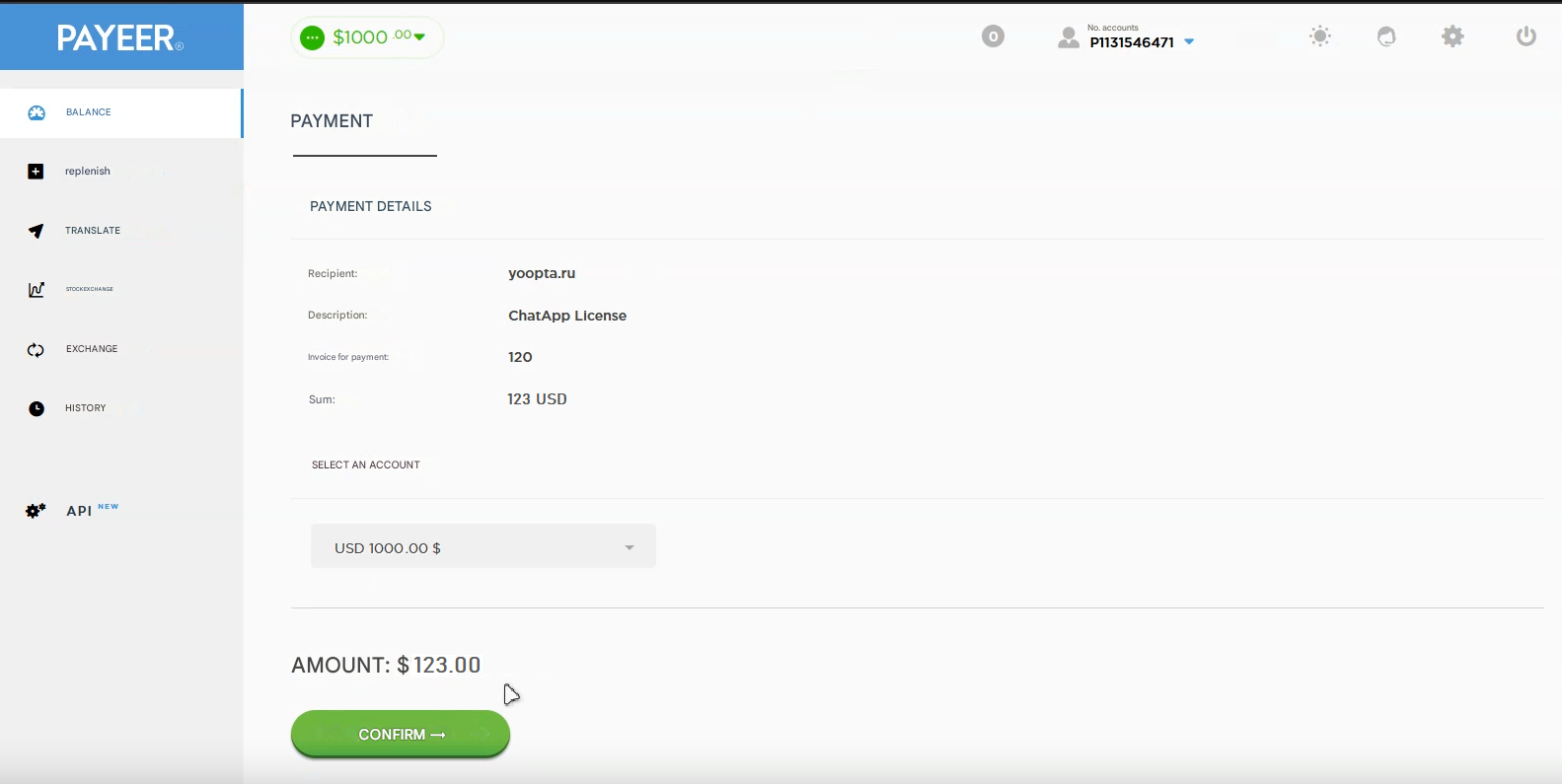
Upon successful payment, a payment message is displayed.
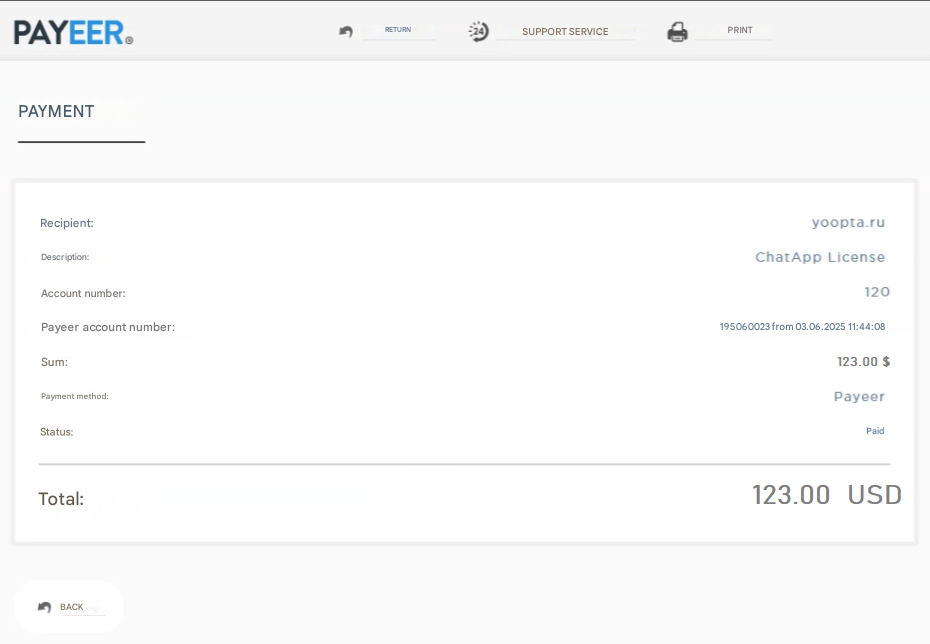
After successfully paying for the line, you’ll gain access to the fully functional version of the software. Now you can use all the system’s features.
