

Create this robot to automatically attach or detach an employee in a dialog and assign him one of the roles: producer, accomplice, responsible, or observer.
Add and configure an automation rule – Chat members
- Go to the Bitrix24 platform and add a new robot to the selected stage of the deal.
- Click Create.
- In the opened window, enter the partial or full name of the automation rule “Chat Members”. Click Add
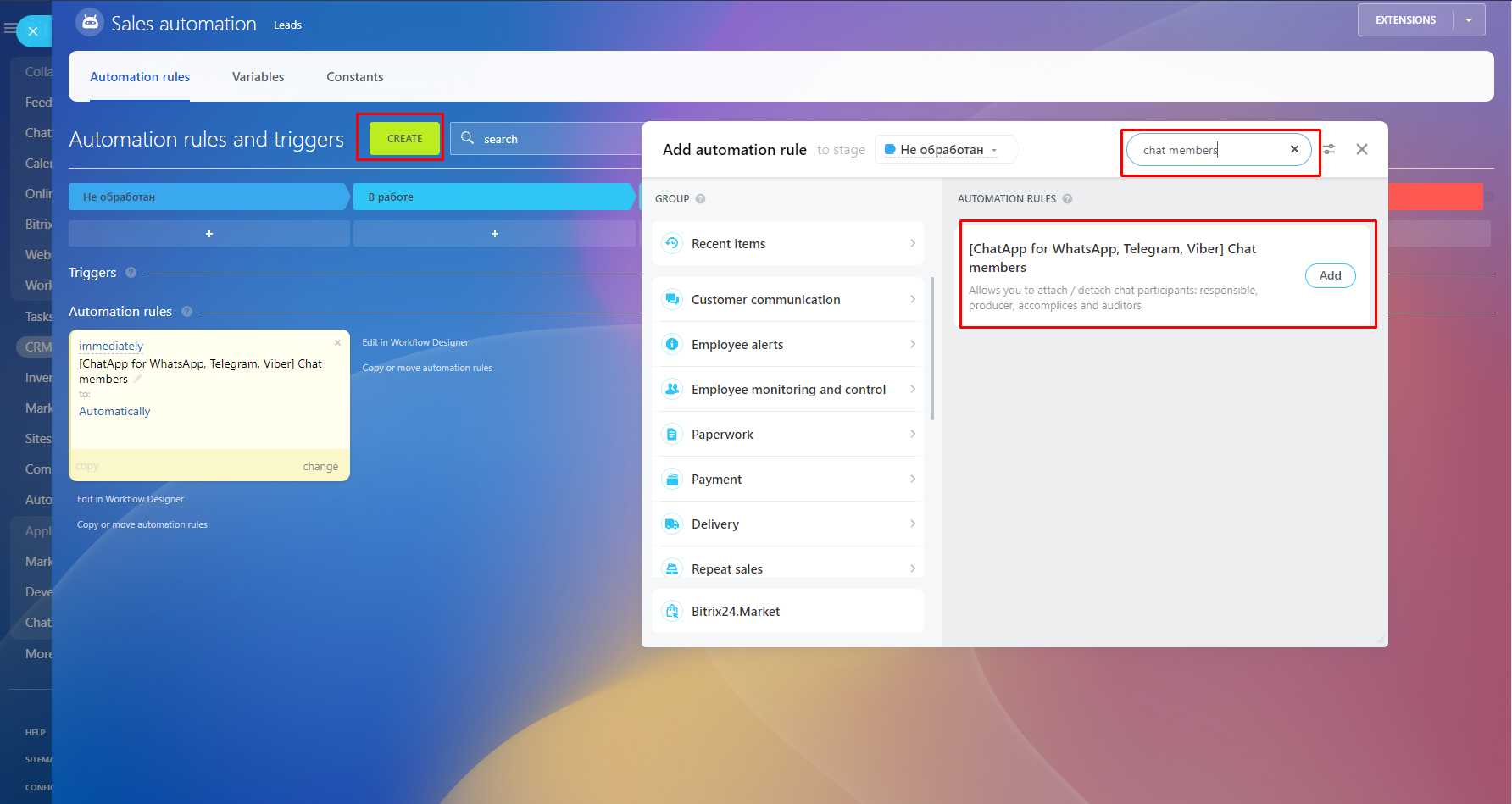
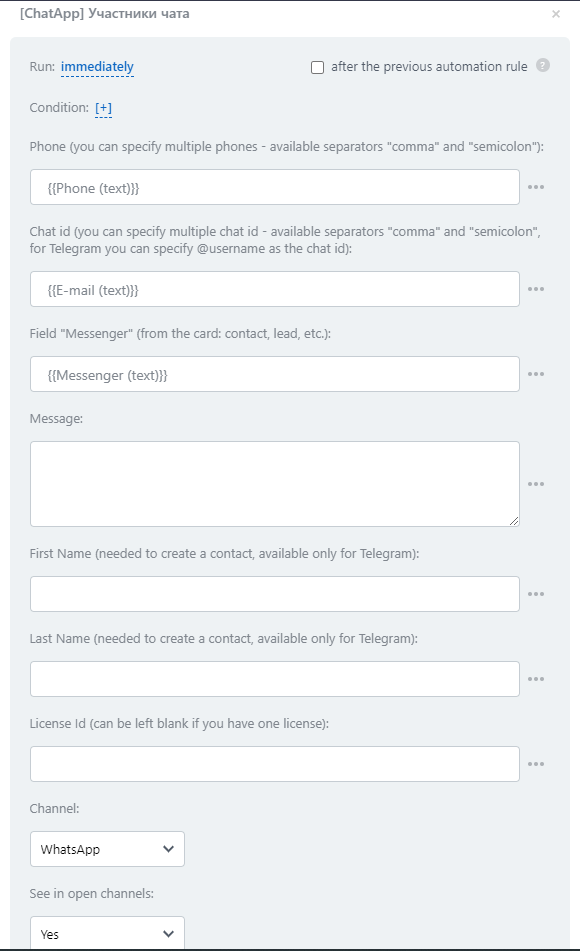
- Select robot [ChatApp] – Chat members and fill in the settings fields:
- Phone – specify one or more phone numbers for sending a message (when specifying several numbers, be sure to use the delimiters “comma” or “semicolon”).
- Chat ID – specify the chat id from the ChatApp Dialog or @username of the Telegram user if the phone number is not available.
- Messenger – specify the messenger from the deal or lead card using the field mask. This field is required when the contact’s phone number or other details are not available.
- Message – enter a message to send.
- First Name and Last Name– these data will be filled in only for the Telegram messenger. Contacts are filled in the messenger directory and displayed in dialogs.
- License ID – fill in the ID of the license you will use to send the message. You can leave this field blank if you only have one active license.
- Channel – the channel through which the message will be sent.
- See in open lines – show it in open CRM lines
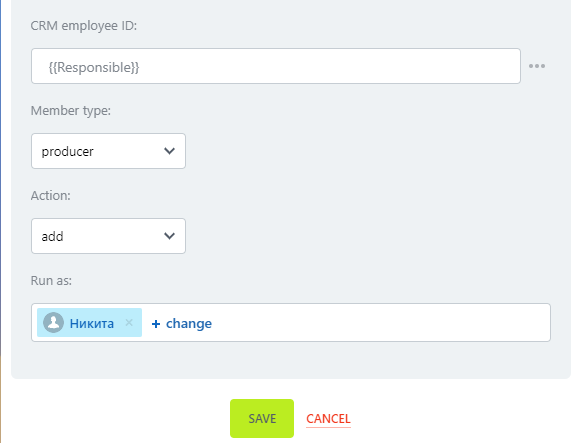
CRM employee ID – fill in the id of the employee to be added or deleted to the chat members.
Member type – in the drop-down list, select the role assigned to the employee.
– producer – Distributes dialogues between co-executors.
– accomplice – Distributes dialogues between those responsible.
– responsible – is responsible for dialogs on the lines.
– auditor – Views the dialogs on the lines.
Action – select add member to chat or remove a member from chat